Setting Up a New Xbox Series X|S: The First Hour
Your first hour with an Xbox Series X|S: app or on-screen setup, sign-in, power modes, updates, moving data, home screen and family settings.
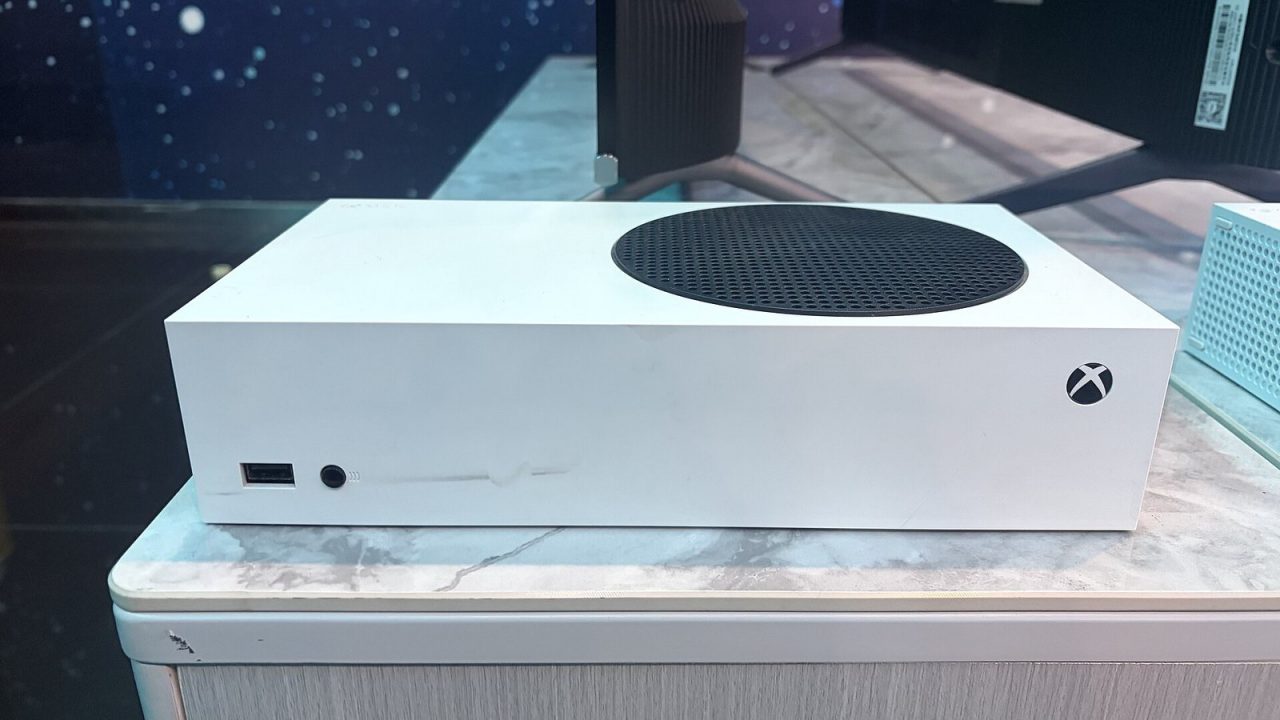
Microsoft designed the Xbox Series X|S setup to be fast. Scan a code with your phone, confirm a few choices, and the console starts downloading updates before you have finished unwrapping the controller. The catch is that a handful of decisions made in those first minutes, especially the power mode, shape how the console behaves every day afterward. This guide covers the first hour in order, with notes on what each choice actually changes.
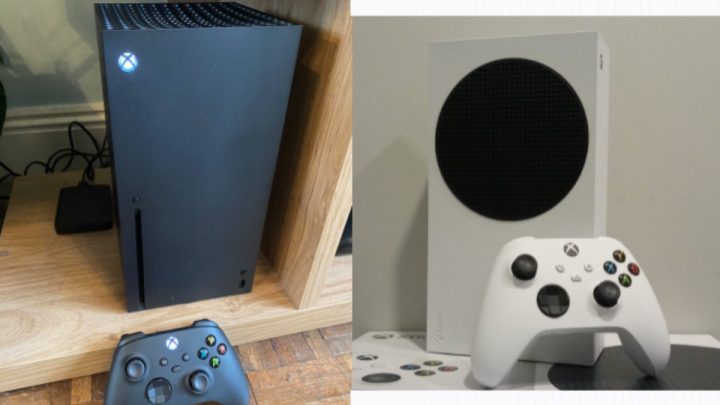
Everything here applies to both the Series X and Series S, in every storage configuration. If you are still deciding between them, start with our Series X vs Series S comparison. Menu labels follow Microsoft’s current wording; system updates occasionally move items, so if something looks different, check the same section of Settings.
Before you start: account and phone
Your Xbox identity is a Microsoft account with an Xbox profile attached. If you already play on an Xbox One, on PC or in the Xbox mobile app, use that same account; your gamertag, friends, achievements, digital purchases and cloud saves come with it. If you have used Outlook, Windows or Microsoft 365, you probably already have a Microsoft account even if you have never touched an Xbox.
Two things to do on your phone first:
- Secure the account. Turn on two-step verification or a passkey in your Microsoft account security settings before you sign in on a new device.
- Install the Xbox app for iOS or Android and sign in. It is the quickest way to set up the console and is useful later for remote downloads and sharing captures.
If children will use the console, it also helps to have a Microsoft family group in place, which is covered later in this guide.
Connecting the hardware
Use the HDMI cable that came in the box. Microsoft ships both consoles with a high-bandwidth cable, and swapping in an older cable is one of the most common reasons 120Hz modes don’t appear later. Plug it into an HDMI port on your TV that supports the features you want; on many TVs, only some ports handle 4K at 120Hz and variable refresh rate.
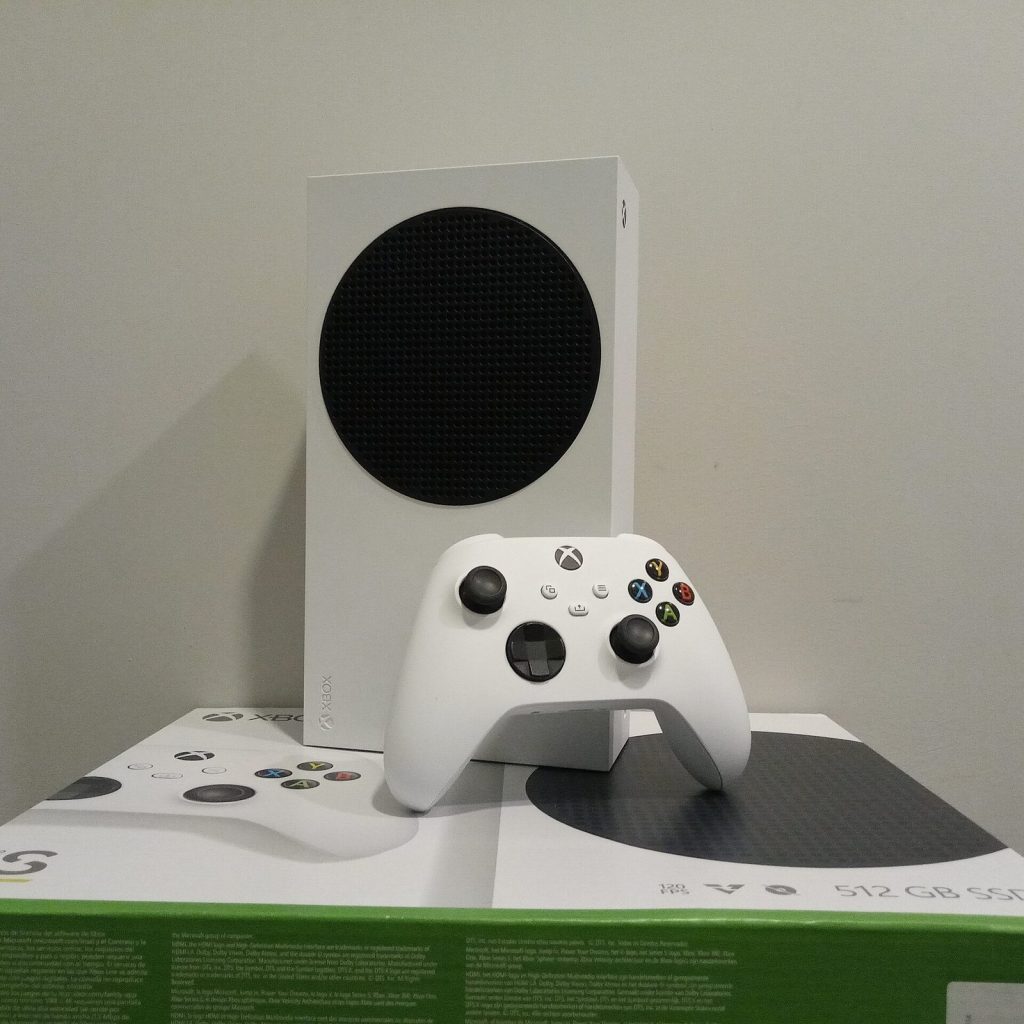
A wired Ethernet connection is worth using if your router is nearby. It tends to be more stable than Wi-Fi for large downloads, and the first day of a new console is mostly downloads.
To pair the controller, insert the batteries, turn it on with the Xbox button, then press the Pair button on the console and the Pair button on top of the controller. The Xbox button flashes faster while pairing and stays lit once it connects. Our Xbox Wireless Controller guide covers firmware updates and remapping once you are set up.
Setup with the Xbox app or on the console
When you turn on a new Xbox, it offers two paths.
Using the Xbox app
The console displays a code. In the Xbox app on your phone, choose the option to set up a console and enter that code. The app then walks you through language and region, network connection, signing in, and your first preferences, while the console downloads its system update in parallel. Typing passwords on a phone keyboard instead of an on-screen one is the main advantage.
Setting up on the console
If you prefer not to use a phone, choose to set up on the console instead. The steps are the same; you just enter everything with the controller. Either path ends in the same place.
Region matters
Choose your actual country or region. It determines which Microsoft Store you see, what payment methods work and which content is available. Changing region later is possible but comes with restrictions, so it is best to get it right now.
Power modes: Sleep vs Shutdown (energy saving)
This is the most consequential choice of the setup. Xbox Series X|S consoles offer two power modes, found under Settings > General > Power options:
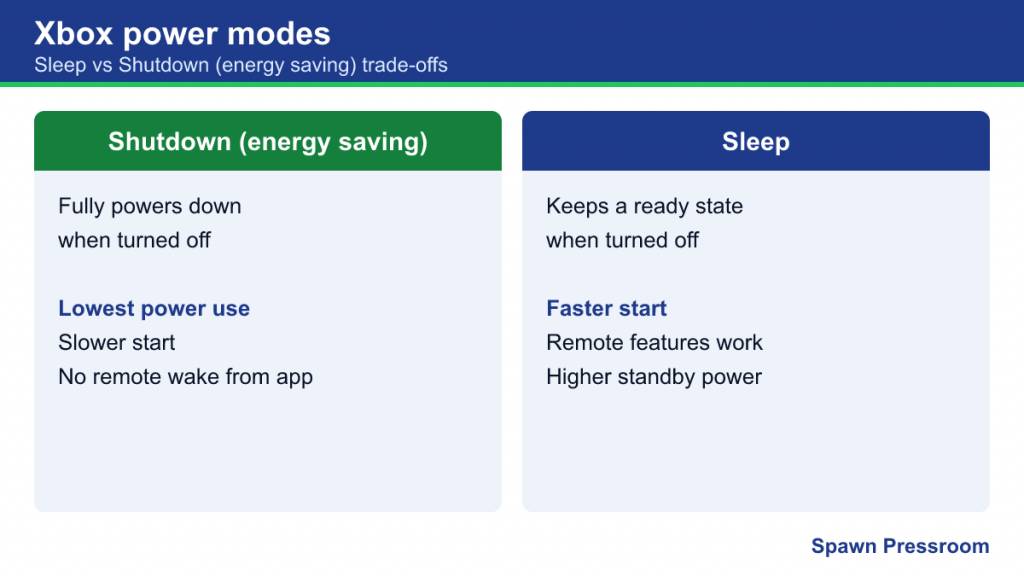
| Mode | What it does | Trade-offs |
|---|---|---|
| Shutdown (energy saving) | Fully powers down when you turn the console off | Lowest power use; slower start; no remote wake from the app |
| Sleep | Keeps the console in a ready state when off | Faster start and remote features; noticeably higher standby power |
In January 2023 Microsoft said on Xbox Wire that Shutdown (energy saving) cuts power use by up to 20 times compared with Sleep while the console is off, and that existing Series X|S consoles were being switched to it by default. According to Microsoft, Shutdown still receives overnight updates to the system, games and apps, so choosing it does not mean coming back to a pile of patches.
What Sleep gives you
- Faster start-up from off.
- Remote features such as turning the console on or starting downloads from the Xbox app, and playing your console remotely from another device.
Active Hours
If you choose Sleep, Microsoft’s Active Hours setting lets the console stay in Sleep only during hours you pick. Outside those hours it behaves like Shutdown, drawing about 0.5 W. It is a reasonable compromise if you want instant-on in the evenings but don’t need the console ready at 4 a.m.
If you never use the app to wake the console and don’t mind a slightly slower boot, Shutdown (energy saving) is the sensible default.
Updates and downloads
Under Settings > System > Updates you can check for system updates manually and enable automatic updates for the console, games and apps. Leave automatic updates on: many games refuse to go online until they are patched, and having updates install overnight means less waiting when you sit down to play.
If a system update ever fails repeatedly, Microsoft also provides an Offline System Update method using a USB drive and the console’s startup troubleshooter. You are unlikely to need it during setup, but it is good to know it exists.
Bringing games and saves from an Xbox One
Most of what matters comes with your account automatically:
- Cloud saves: game saves sync through your account, so signing in on the new console typically picks them up when you launch the game.
- Digital games: your library appears under My games & apps, ready to download. Most Xbox One, and many Xbox 360 and original Xbox titles, run on Series X|S; see our Xbox backward compatibility guide for the details.
- Disc games: insert the disc on a Series X disc model. The Series S and digital-only Series X have no disc drive.
Copying games over your home network
Instead of downloading everything again, you can copy installed games from an Xbox One over your local network. On the old console, go to Settings > System > Backup & transfer and allow network transfer. On the Series X|S, open the same section, select the old console under local consoles, and pick what to copy. Both consoles need to be on the same network, and a wired connection makes it noticeably faster.
Using an external drive
If your Xbox One games live on an external USB drive, plug it into the new console. Xbox One, Xbox 360 and original Xbox games can play directly from USB, though games built for Series X|S cannot.
Privacy and online safety
Head to Settings > Account > Privacy & online safety. Microsoft offers preset privacy levels as well as a detailed view where you can set who can see your profile, online status, game activity and friends list; who can message you or invite you to parties; and whether you can see content made by other players.
For most adults, limiting messages and party invites to friends is a sensible starting point. The same section includes message safety filtering, which can hide potentially offensive text messages and media.
Family settings for children
Parental controls on Xbox work through a Microsoft family group. An adult organizer creates or invites child accounts, and those accounts follow the limits the organizer sets. The free Xbox Family Settings app on iOS and Android is the most convenient way to manage it. According to Microsoft, it lets parents:
- View daily and weekly activity reports, set screen time schedules for each day and temporarily pause a child’s play.
- Update content restrictions based on age ratings.
- Turn on Ask to Buy so purchases need approval, check balances, add allowance money and review spending.
- Respond to friend requests, remove friends and choose how a child plays and communicates with others online.
The child needs to be signed in with their own Microsoft account in the family group for any of this to apply. Letting children play on an adult profile bypasses every control, so creating separate accounts is the most important step.
Making the home screen yours
The Xbox home screen is customizable, and a few minutes here pays off daily:
- Pin favorites: from My games & apps, open an item’s options and pin it to Home, or add it to a group you can pin.
- Customize Home: the home screen’s customization option lets you reorder or remove the rows below your recent games.
- Theme and background: under the personalization settings you can choose an accent color, dark or light theme, and a background, including a screenshot of your own.
- Display check: under Settings > General > TV & display options, confirm the resolution and refresh rate, enable 120Hz or variable refresh rate under video modes if your TV supports them, and run HDR game calibration.
Common setup mistakes
- Signing in with a new account by accident. Your games and saves are tied to your existing Microsoft account. If your library looks empty, check which account is signed in.
- Expecting remote wake in Shutdown mode. The Xbox app cannot turn on a fully shut-down console. Switch to Sleep if you rely on that.
- Using an old HDMI cable. Missing 120Hz options usually point to the cable or the TV port.
- Skipping subscriptions setup. If you subscribe to Game Pass, confirm your membership is active on the new console.