Xbox Accessibility Features: A Complete Guide
Every major Xbox accessibility feature explained: Narrator, Magnifier, color filters, chat transcription, remapping, Controller Assist and adaptive hardware.
Microsoft has made accessibility one of the defining features of the Xbox platform. The Xbox Adaptive Controller, released in 2018, was a landmark piece of hardware, and the console software has grown a long list of options for players with vision, hearing, mobility and cognitive needs. Many of those settings are just as useful for everyone else: high contrast for a bright room, chat transcription for a quiet one, a remapped button for a game with an awkward layout.
This guide walks through the Xbox Series X|S accessibility features and hardware, what each does and how they fit together. Most settings are found under Settings > Accessibility on the console, and controller customization happens in the free Xbox Accessories app. If you are setting up a new console, our Xbox Series X|S setup guide covers the rest of the first hour.
Vision: Narrator, Magnifier and display options
Narrator
Narrator is the Xbox screen reader. It describes on-screen text and buttons aloud, letting blind and low-vision players navigate the dashboard, settings and the Store. You can turn it on in the accessibility settings, and a widely used shortcut is to press and hold the Xbox button until the controller vibrates, then press the Menu button. You can adjust voice, speed and volume, and how much detail Narrator reads.
As with any screen reader on a console, Narrator covers the system interface; whether a game’s own menus are read aloud depends on that game.
Magnifier
Magnifier enlarges the screen so text and images are easier to see. Once enabled, you can zoom in and pan around, and it works in games as well as menus, which is helpful when a game’s text is too small.
High contrast
High contrast improves the separation between text and other elements in Xbox’s built-in apps and interface, with dark and light versions available.
Color filters
Color filters adjust the image for players with color vision deficiency. Microsoft lists filters for deuteranopia, protanopia and tritanopia, the most common forms of color blindness. Because they apply system-wide, they affect games too, which helps in titles that rely on color to convey information without offering their own color-blind modes.
Night mode
Night mode adjusts a blue light filter and can tone down the brightness of the screen, controller and console lights. Microsoft presents it as a way to reduce eye strain and support sleep. It is useful for light-sensitive players and anyone gaming in a dark room.
Hearing: captions and chat transcription
Closed captions
The Xbox supports closed captions for supported DVDs, Blu-ray discs and many on-demand video services, with options to customize their appearance. In-game subtitles, as always, are controlled by each game.
Speech-to-text and text-to-speech in chat
This is one of Xbox’s most useful accessibility features. Speech-to-text converts what other players say in party and in-game chat into on-screen text. Text-to-speech reads aloud what you type, so other players hear your messages as speech. Together they let deaf and hard of hearing players, and players who cannot or prefer not to speak, take part in voice chat.
You can choose the voice used for text-to-speech, and the transcription appears as an overlay so you can follow the conversation without leaving the game.
Audio options
Mono audio and options for balancing chat and game volume help players with hearing loss in one ear and players who struggle to pick out speech over game sound. Settings for headset audio are reachable from the guide while you play.
Controls: remapping and Controller Assist
Button mapping in the Xbox Accessories app
The Xbox Accessories app lets you reconfigure controller layouts at the system level. You can swap buttons, swap the thumbsticks, swap the triggers, invert stick axes and turn vibration off. Profiles can be saved and assigned, and because remapping happens below the game, it works in titles that offer no remapping of their own. The app also covers the Elite Series 2 and Adaptive Controller, which offer even more options. See our Xbox Wireless Controller guide for pairing and firmware basics.
Controller Assist (formerly Copilot)
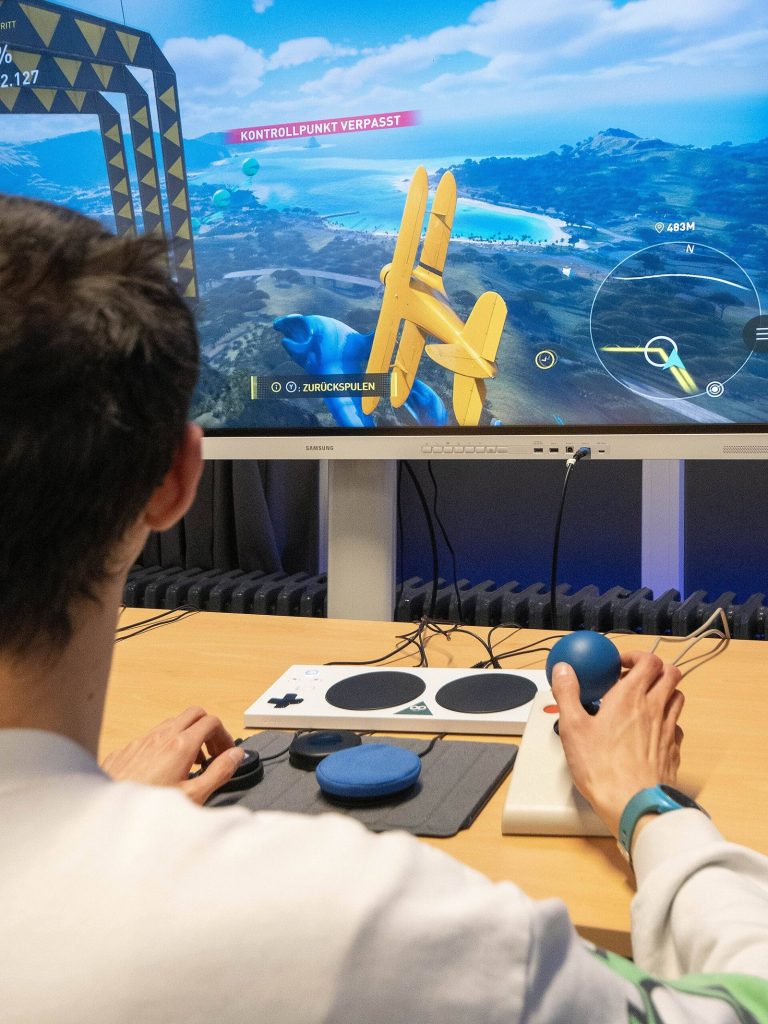
Controller Assist pairs two controllers so they act as one. Microsoft describes two uses: a single player using two controllers, for example combining an Adaptive Controller with a standard controller to split inputs between hands, feet or other body parts; or two people sharing control, such as a parent helping a child with a tricky section. The feature was long known as Copilot, and some Microsoft links and older guides still use that name.
Mouse and keyboard
Select games and apps support wired USB mouse and keyboard on Xbox. For some players, a keyboard and mouse are more comfortable or precise than a controller; check each game’s listing for support.
The Xbox Adaptive Controller and adaptive hardware
Xbox Adaptive Controller
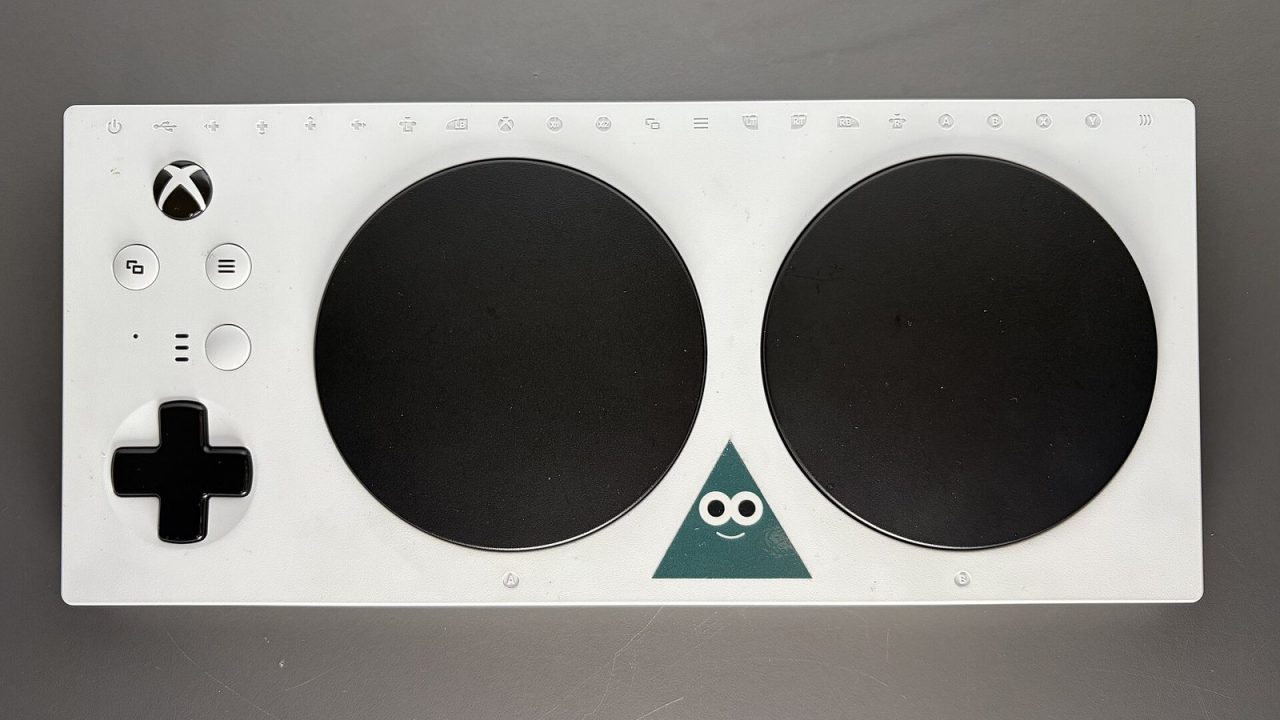
Released on September 4, 2018, the Xbox Adaptive Controller is designed as a hub for players with limited mobility. It is a flat, rectangular unit with two large programmable buttons on top, but its real power is on the back:
- Nineteen 3.5mm ports, each corresponding to a button, trigger, bumper or D-pad direction, for connecting external switches, buttons, pedals and other assistive devices.
- Two USB ports for devices that map to the left and right thumbsticks, such as compatible joysticks.
- A 3.5mm headset jack for audio.
- Profiles: multiple profiles can be created in the Xbox Accessories app, with three switchable using a built-in profile button.
- Mounting points on the underside for attaching it to wheelchairs, desks or mounts.
Microsoft lists compatibility with Xbox One, Xbox Series X|S and Windows PCs, plus select other devices over Bluetooth or USB. Because each input can be placed wherever a player can reach it, the controller can be adapted to a huge range of needs, and it is commonly combined with a standard controller using Controller Assist.
Xbox Adaptive Joystick
Microsoft has also released the Xbox Adaptive Joystick, a companion device that can be used alongside Xbox controllers to build a fuller adaptive setup.
Adaptive thumbstick toppers
Microsoft offers downloadable 3D-printable files for thumbstick toppers that fit Xbox controllers, letting players print shapes that are easier to grip or push. You need access to a 3D printer.
Finding accessible games in the Store
System features help, but each game’s own options matter just as much. The Microsoft Store on Xbox shows accessibility tags on game listings, grouped into gameplay, auditory, visual and input categories, so you can check before buying whether a game supports features such as adjustable difficulty, adjustable font size, subtitles or full button remapping. Xbox’s accessibility page notes these tags follow the Accessible Games Initiative’s categories, an industry effort to describe accessibility features in a consistent way across platforms.
When a game lacks a feature you need, system-level tools can often fill the gap: color filters for color-coded information, Magnifier for small text, Accessories app remapping for awkward controls.
Other helpful features
- Break reminders prompt you to rest at intervals of 30 minutes, 1 hour, 1.5 hours or 2 hours, which can help players who need regular breaks.
- Voice commands through supported assistants can power on the console, launch games and capture screenshots, reducing the need for controller input for simple tasks.
- Support: Microsoft’s Disability Answer Desk provides support for Xbox accessibility questions, and in the U.S. it offers Xbox account and billing help in American Sign Language by videophone.
Example setups
Most players combine several features. Some common starting points:
- Blind or low vision: Narrator for menus, Magnifier and high contrast, plus Store tags to find games with audio cues and narrated menus.
- Deaf or hard of hearing: speech-to-text for chat, closed captions and in-game subtitles, and games tagged for visual cues.
- Color vision deficiency: the appropriate color filter, adjusted game by game if needed.
- Limited mobility: Accessories app remapping, the Adaptive Controller with external switches, and Controller Assist to combine devices or bring in a helper.
If you also play on PlayStation, our PS5 accessibility guide covers Sony’s equivalent features, including its Access controller.
Frequently asked questions
Do I need special hardware to use Xbox accessibility features?
No. Narrator, Magnifier, color filters, high contrast, chat transcription and button remapping all work with a standard Xbox Wireless Controller. Adaptive hardware is there for players who need different physical inputs.
Does button remapping work in every game?
Remapping done through the Xbox Accessories app is applied by the console to the controller’s inputs, so it carries into games that have no remapping options of their own. Some games also offer their own remapping, which can be combined with or used instead of system remapping. If something feels wrong, check whether both are active at once.
Can the Adaptive Controller be used on PC?
Yes. Microsoft lists Windows 10 and 11 PCs as compatible, and notes that remapping on Windows requires a wired USB connection. Select other devices are supported over Bluetooth or USB, though full functionality can vary by device.
Where do I start if I’m setting up for someone else?
Begin with the player rather than the menu: what can they see, hear and reach comfortably? Then enable the matching system features, try a game with strong accessibility tags, and adjust from there. Small changes, like a larger text size or one remapped button, often make the biggest difference.