PS5 Accessibility Features: A Complete Guide
A tour of PS5 accessibility: screen reader, zoom, captions, chat transcription, custom buttons, assist controller, the Access controller and Store tags.

Accessibility settings are often thought of as something for a small group of players. In practice, they are some of the most broadly useful options on the PS5. Larger text helps on a TV across the room. Captions help in a noisy home. Remapping a button helps when a game’s default layout strains your hand. And for players with disabilities, the right combination of settings and hardware can be the difference between playing and not playing at all.
This guide covers the PS5’s system-level accessibility features, where to find them and what each one does, plus the Access controller and the tools that help you find accessible games. Most options live in Settings > Accessibility, and many can also be added to the control center for quick access, which Sony highlights as a way to toggle features without digging through menus.
Vision: seeing the screen more easily
Screen Reader
The screen reader reads on-screen text aloud and gives spoken guidance for operating the console, such as menus, buttons and notifications. Once enabled, it lets blind and low-vision players navigate the system and its settings independently. You can adjust speed and volume and choose how much it says. Note that the screen reader covers the system interface; how much of an individual game is narrated depends on that game’s own features.
Zoom
Zoom magnifies part of the screen. Once enabled, you trigger it with a button combination and pan around the magnified area. It works throughout the system and in games, which makes it useful for reading small text in a game that doesn’t offer its own size options.
Text size and bold text
Increasing text size and switching on bold text makes the system interface easier to read, particularly from a couch. These settings affect the console’s menus rather than text inside games.
Contrast and color options
High contrast increases the contrast of interface elements and text. Color correction adjusts colors for players with color vision deficiency, and inverting colors swaps the palette, which some players with light sensitivity find more comfortable. Like zoom, some color options apply beyond the interface, so check whether a game looks right after changing them.
Reduce motion
Reducing motion cuts down on animated movement in the system interface. It is helpful for players who experience discomfort from on-screen motion.
Hearing: captions, mono audio and chat transcription
Closed captions
The PS5 can display closed captions for dialog and audio cues in videos, with options for how they look. In-game subtitles are a separate matter controlled by each game, but you can set a default so that supporting games turn subtitles on automatically; that lives in the Game Presets settings covered in our PS5 first setup guide.
Mono audio
Mono audio for headphones combines left and right channels so that a player with hearing in one ear does not miss sounds that only come from one side. It is especially relevant in games where directional sound conveys important information.
Chat transcription
Party chat transcription converts other players’ voice chat into text on screen and can read aloud the text you type, so you can talk with friends in voice chat by typing. This helps deaf and hard of hearing players and those who cannot or prefer not to speak, and it is equally useful when you need to keep the room quiet.
Chat and game audio balance
Settings for balancing voice chat against game sound, and for adjusting the console’s sounds, can make speech easier to hear over a loud game. Separating chat audio onto a headset while game sound plays through the TV is another option depending on your setup.
Controls: making the controller fit you
Custom button assignments
The PS5 lets you reassign any button on the DualSense at the system level. Swap two buttons, move a hard-to-reach input to a more comfortable one, or disable a button entirely. Because this works system-wide, it applies even in games that don’t offer their own remapping. You can switch it on and off as needed, so a customized layout does not get in the way when someone else plays.
Vibration and trigger effect intensity
The DualSense’s haptic feedback and adaptive triggers are signature features, but strong vibration or resistance can be uncomfortable or tiring. You can lower the intensity of both, or turn them off. Our DualSense controller guide explains what these features do in more detail.
Second controller for assistance
This feature lets two controllers act as one. A helper, such as a parent, friend or carer, can hold a second controller and help with difficult sections while the main player keeps playing. According to Sony:
- Turn it on once at Settings > Accessibility > Controllers > Use Second Controller for Assistance. Both controllers must be paired.
- Each session, press the PS button on the main controller and choose a user, then press the PS button on the assist controller and choose the same user.
- The main controller can be a DualSense, DualSense Edge or supported third-party controller. The assist controller can be a DualSense or supported third-party controller; a DualSense Edge can only be the main controller.
- The assist controller does not support haptic feedback, adaptive triggers, mic functions or custom button assignments.
The Access controller
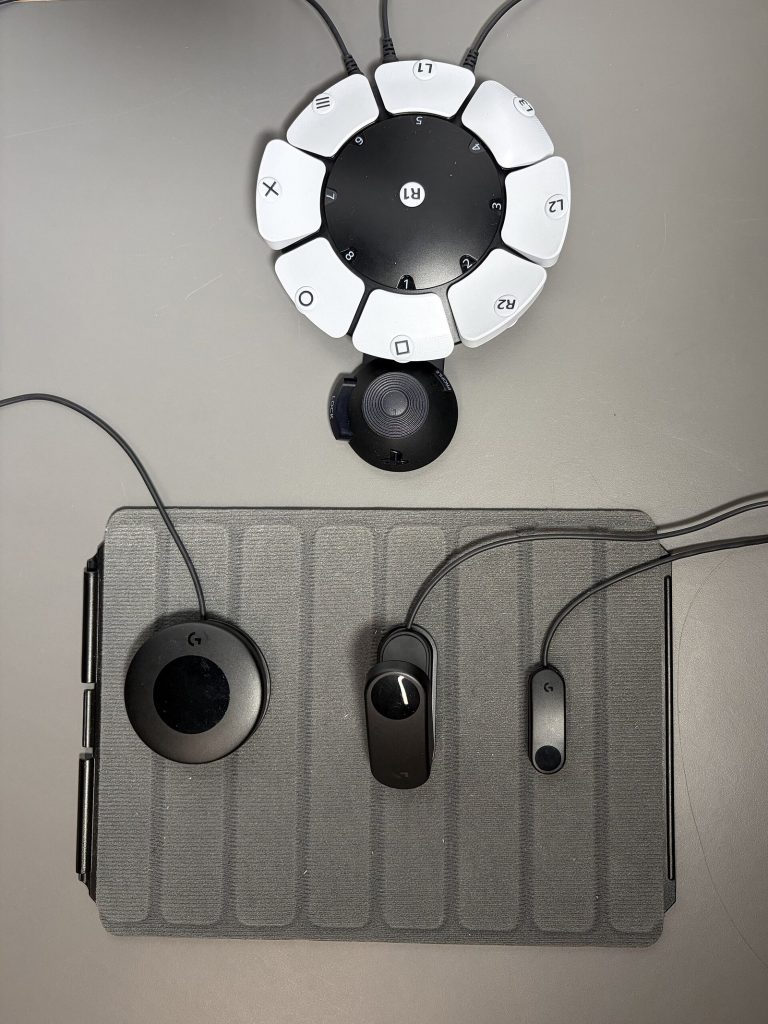
Sony’s Access controller, launched in December 2023, is a controller kit designed with and for players with disabilities. Rather than a fixed shape, it is a round, flat device that can be used in any 360-degree orientation, placed on a table or attached to a standard AMPS mount.
What it includes
- Remappable buttons that can be set to toggle, act as single presses, be disabled, or combine two commands on one button.
- Swappable caps: the kit includes a variety of button cap shapes (pillow, flat, curve, overhang and wide) and three stick caps (standard, dome and ball).
- An adjustable stick with a lockable extension arm, plus calibration of the stick’s “north” direction, sensitivity and deadzone.
- Four 3.5mm expansion ports for adding external buttons, switches and other assistive devices, configured in the PS5’s settings.
- Profiles: up to 30 can be created in PS5 settings, with three stored on the controller and switchable with a dedicated button.
Combining controllers
Up to two Access controllers can work together as a single virtual controller. You can also pair one or two Access controllers with a DualSense or DualSense Edge to add features the Access controller does not have, such as haptic feedback, adaptive triggers, motion sensing and touchpad swipes. Sony notes that no separate setup is needed to use an Access controller for this kind of collaborative play.
Who it suits
The Access controller is designed to be configured around a player’s range of motion, rather than asking the player to adapt to a standard controller. It can be set up for one-handed play, for use with feet or other body parts, or as part of a larger setup with external switches. Accessibility specialists and occupational therapists can help with configuration for complex needs.
Finding accessible games
System settings only go so far; much depends on each game’s own options. Two things help:
- Accessibility tags in the PlayStation Store. Developers can list the accessibility features their game supports, and those tags appear on store listings. Checking them before buying tells you whether a game offers features such as subtitles, adjustable difficulty or control remapping.
- Game presets. System defaults for difficulty, subtitles and camera inversion are read by supporting games automatically, saving you from adjusting each game individually.
Many PlayStation Studios games have shipped with extensive in-game accessibility menus covering things like navigation assistance, audio cues for visual information, and fine-grained control over difficulty. If you find a game that works well for you, it is worth checking whether the same studio’s other games offer similar options.
Voice Command
Sony has offered a Voice Command feature in preview that lets you use your voice to find and open games, apps and settings, or control media playback. Availability depends on language and region, and preview features can change, so check your console’s settings to see whether it is available to you.
Building a setup that works
Accessibility is personal, and the best setup combines several features. A few examples of combinations players use:
- Low vision: larger bold text, high contrast and zoom for the interface; screen reader for menus; game presets with subtitles on.
- Deaf or hard of hearing: closed captions, subtitles via game presets, chat transcription for parties, and controller vibration left on to feel in-game events.
- Limited mobility: custom button assignments, reduced trigger resistance, the assist controller for difficult sections, or an Access controller configured with external switches.
- One hearing ear: mono audio for headphones so directional sounds aren’t lost.
Display settings also matter. A TV in game mode with properly calibrated HDR can make dark scenes easier to read; our guide to TV settings for PS5 and Xbox covers the console side of that.
Frequently asked questions
Do system accessibility settings work in every game?
Some do and some don’t. Custom button assignments, zoom and mono audio work at the system level, so they apply everywhere. Interface options such as text size only change the console’s own menus, and features like subtitles depend on each game’s support.
Can I use the Access controller on its own?
Yes. It works as a controller by itself, and can optionally be combined with a second Access controller or a DualSense when a player needs extra inputs or features.
Will my custom button layout affect other players?
Custom button assignments can be switched on and off, so turn them off when someone else picks up the controller, or have each player use their own profile.