Expanding Xbox Series X|S Storage: Expansion Cards and USB
Why Series X|S games need fast storage, how Storage Expansion Cards differ from USB drives, and how to organize and move games between them.
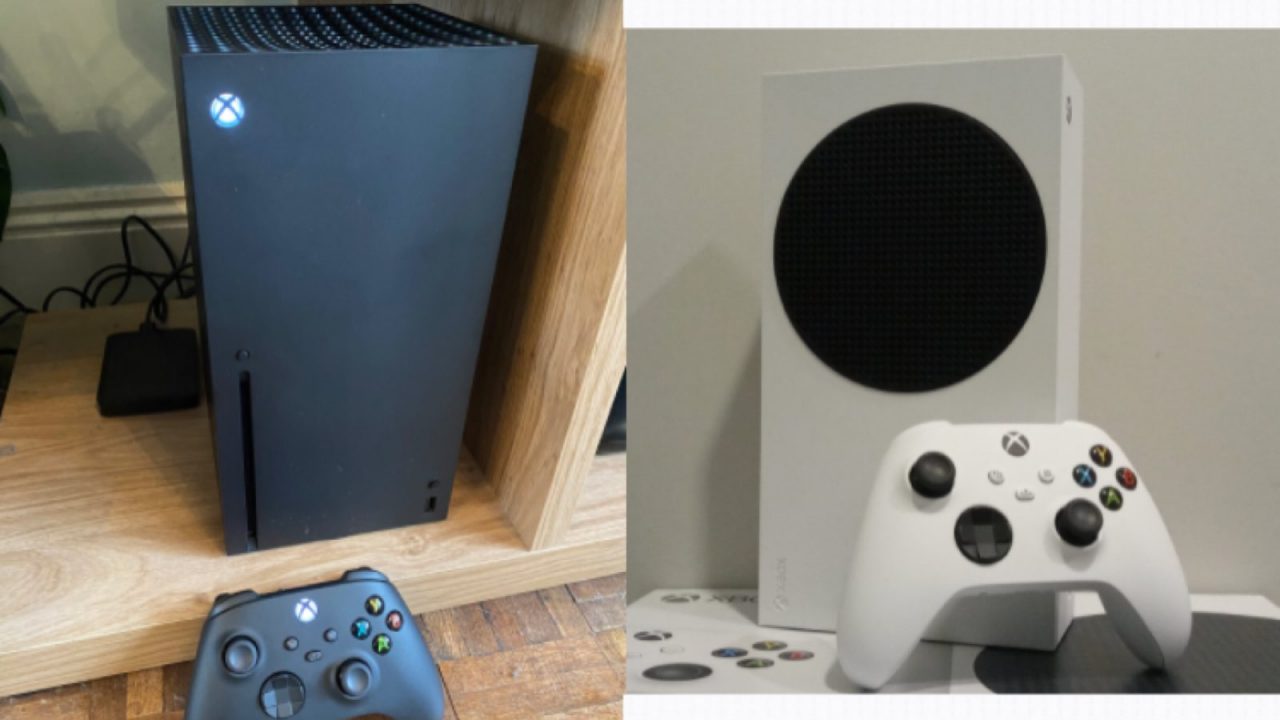
The internal SSD in an Xbox Series X or Series S is one of the most important parts of the console, and also one of the first to run out. Depending on the model, you get 512GB, 1TB or 2TB, and part of that is reserved for the system. Several large games, a few updates and some Xbox One favorites later, the dreaded “storage full” message appears.
Microsoft offers two expansion routes: the proprietary Storage Expansion Card that plugs into the back of the console, and ordinary external USB drives. They do very different jobs. This guide explains why, what each can run, and how to move games around so you spend less time redownloading. As with all our guides, there are no prices here; they vary too much by region and over time.
Why Series X|S games need fast storage: the Velocity Architecture
When Microsoft designed the Series X|S, it built the console around a fast NVMe SSD and a set of related technologies it calls the Xbox Velocity Architecture. In a July 2020 Xbox Wire post, Microsoft described four components:
- A custom NVMe SSD designed for consistent, sustained performance rather than short bursts. Microsoft quoted 2.4GB/s of raw throughput for the Series X drive.
- Hardware decompression that unpacks compressed game data in dedicated hardware, supporting a standard LZ format and BCPack, a format designed for textures. With a typical 2:1 compression ratio, Microsoft said effective throughput doubles to 4.8GB/s.
- DirectStorage, an API that gives developers finer control over how data is read, prioritized and queued.
- Sampler Feedback Streaming, which loads only the parts of textures a scene actually needs, reducing memory and storage demands.
The practical consequence is that games built for Series X|S can assume this level of storage performance. They may stream assets constantly while you play instead of loading everything up front. A drive that cannot guarantee the same consistency could cause stutters, missing textures or longer loads, so Microsoft does not allow these games to run from USB drives.
Older games are a different story. Xbox One, Xbox 360 and original Xbox titles were designed for the hard drives of their own era, so they run happily from external USB storage. You can read more about how those games work on new hardware in our Xbox backward compatibility guide.
Storage Expansion Cards: the plug-in internal upgrade
A Storage Expansion Card is a small cartridge that slots into the dedicated expansion port on the back of a Series X or Series S. It is designed to match the internal SSD: in the same Xbox Wire post, Microsoft said the Seagate card delivers the same consistent, sustained performance as the internal drive, so games play the same regardless of where they are installed.
What an expansion card does
- Stores and plays everything the internal SSD can, including games optimized for Series X|S.
- Supports Quick Resume and other features just like internal storage.
- Needs no tools, formatting steps or opening of the console. Plug it in and the console recognizes it.
- Can be moved between consoles. Your games travel with the card, and they work on another Series X|S once you sign in with an account that owns them.
What to know before buying
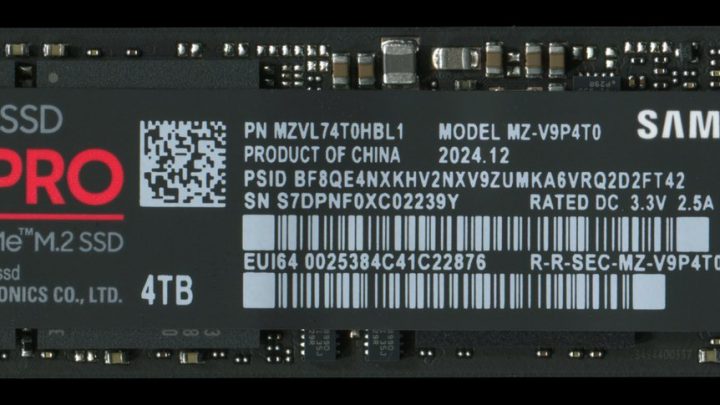
Expansion cards use a proprietary connector, so only officially licensed cards designed for the Xbox Series X|S expansion slot will work. Seagate launched the first card alongside the consoles, and Western Digital later added its own licensed card. They come in several capacities. A standard M.2 SSD will not fit or work in the slot, even though the card contains similar technology inside.
The console has a single expansion card slot, so you can use one card at a time. Swapping cards is possible, but best done with the console off.
External USB drives: storage plus older games
External USB drives are the flexible, widely available option. Here is what they can and cannot do on Series X|S.
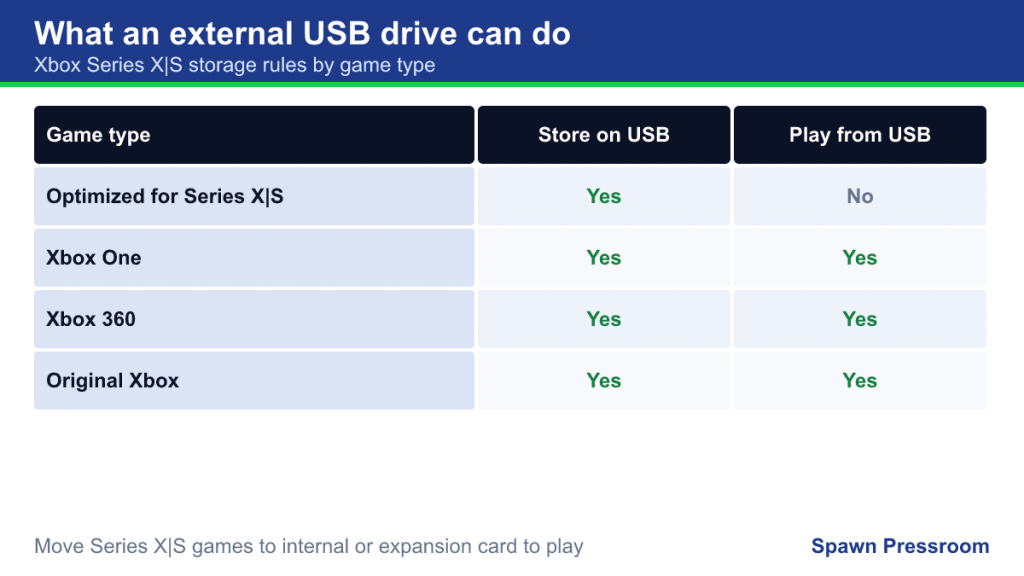
| Game type | Store on USB | Play from USB |
|---|---|---|
| Optimized for Xbox Series X|S | Yes | No; move to internal or expansion card first |
| Xbox One | Yes | Yes |
| Xbox 360 (backward compatible) | Yes | Yes |
| Original Xbox (backward compatible) | Yes | Yes |
Requirements
For games, the drive must be USB 3.0 or later and at least 128GB in capacity. Smaller drives can be used for media but not games. When you connect a new drive, the console asks whether to format it for games and apps; formatting erases the drive, so back up anything on it first.
Hard drive or SSD?
Both work for older games. An external SSD generally loads Xbox One-era games faster than a spinning hard drive and also copies games back to internal storage more quickly. A large hard drive gives more space for the same outlay and is perfectly fine as a “cold storage” library. Neither can run Series X|S optimized games.
Using a drive from an Xbox One
If you already have a USB drive with Xbox One games installed, plug it into your Series X|S. The games are recognized and can be played from it without reinstalling, which is one of the quickest ways to bring a library across when you upgrade. Our Xbox Series X|S setup guide covers the other transfer options.
Moving and copying games between drives
Once you have more than one storage device, the console lets you move or copy games between them.
- Per game: in My games & apps, highlight a game, open its options menu, choose Manage game and add-ons, and use the option to move or copy it to another drive.
- In bulk: the console’s storage device management screen lets you select a drive and transfer multiple games and apps at once.
- Install location: you can choose where new games install by default. Keeping Series X|S games on fast storage and sending older games to USB makes the most of your space.
Why parking games on USB helps
Even though Series X|S optimized games cannot run from USB, storing them there is still useful. Copying a game back from a USB drive is often much faster than downloading it again, and it avoids eating into data caps. Many players keep their current rotation on internal storage or the expansion card, and the rest of their library parked on a large USB drive.
A sensible storage layout
There is no single right setup, but this pattern works for most people:
- Internal SSD: the Series X|S games you are actively playing.
- Expansion card (if you have one): more active Series X|S games, especially big ones you return to often.
- USB drive: Xbox One, Xbox 360 and original Xbox games you play directly, plus Series X|S games you want to keep but are not playing right now.
Series S owners tend to feel the squeeze first, because the base Series S has the smallest internal drive in the family. For them, a USB drive for older games is often the first and most cost-effective step. The differences between the models are explained in our Series X vs Series S comparison.
How much extra space do you actually need?
Think in terms of habits rather than gigabytes. If you finish one game before starting the next and have a fast, uncapped internet connection, the internal drive may be enough, and deleting finished games is painless. If you rotate between several big multiplayer games that receive frequent updates, or you play a lot of subscription titles, more fast storage pays off. If your library is mostly older generation games, a USB drive covers almost all of your needs. Checking which games take the most space in My games & apps before buying anything gives you a realistic picture.
Common mistakes
- Buying an M.2 SSD for the expansion slot. The Xbox slot accepts only licensed Storage Expansion Cards.
- Expecting Series X|S games to run from USB. They will need to be moved first; the console prompts you when you try to launch one.
- Using a drive smaller than 128GB. It will only work for media, not games.
- Unplugging a drive during a transfer. Wait for transfers to finish before disconnecting anything.
- Forgetting about installed add-ons. Some games have large add-ons or high-resolution texture packs. Check the Manage game and add-ons screen before assuming the base game is the only thing taking up space.
Frequently asked questions
Do games run faster from an expansion card than from internal storage?
No. The card is designed to perform like the internal drive, not better. It is a capacity upgrade.
Can I use an expansion card and USB drives at the same time?
Yes. The expansion card occupies its dedicated slot, and USB drives use the USB ports, so you can combine them.
If I uninstall a game to free space, do I lose my progress?
Normally not. Xbox games sync saves to the cloud through your account, so reinstalling the game later picks up where you left off once the console syncs. If you play offline for long periods, connect and let saves sync before uninstalling anything important.
How do I see what is using my space?
The storage device management screen shows each drive’s free space, and My games & apps can be sorted by size. Sorting by size is the fastest way to find the handful of games responsible for most of the usage, which is usually where cleanup should start.
Does the drive I choose affect save files or achievements?
No. Saves and achievements belong to your account, not the drive the game is installed on, so moving a game between internal storage, an expansion card and USB does not touch them.