Xbox Wireless Controller Guide: Features, Pairing and Settings
The Xbox Series X|S controller explained: Share button, hybrid D-pad, pairing, Bluetooth, firmware, remapping, plus the Elite and Adaptive controllers.
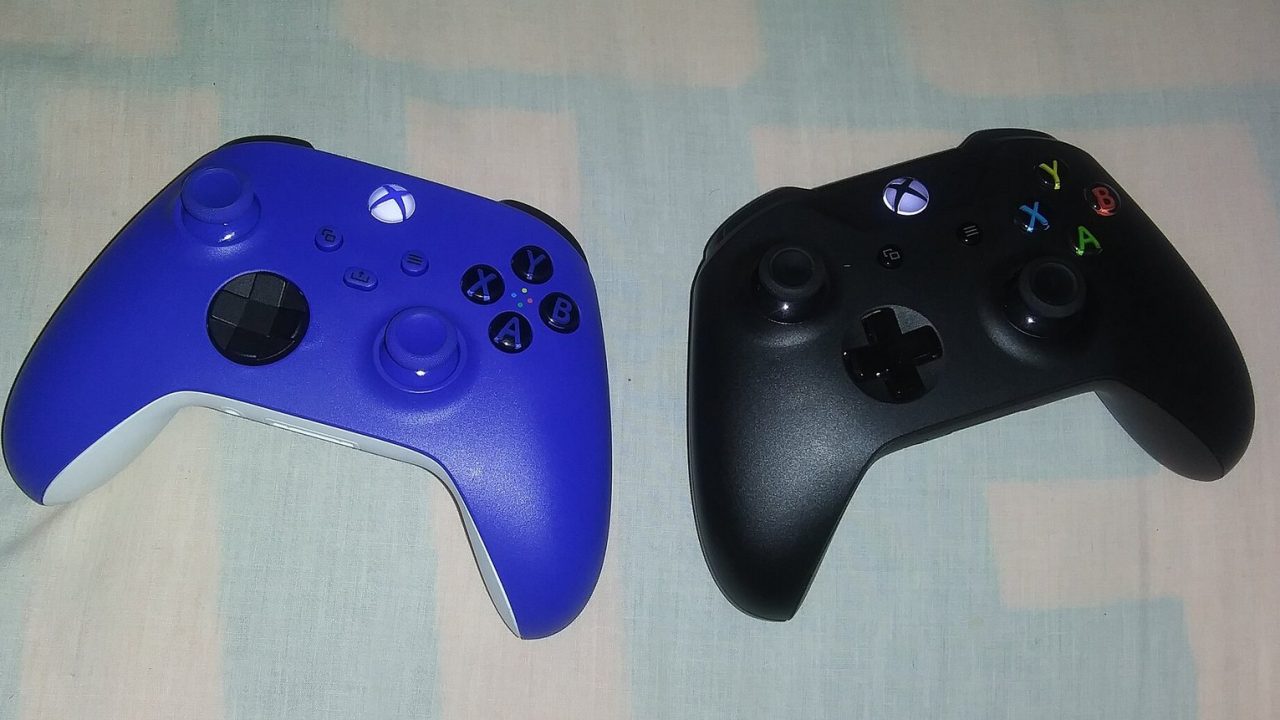
The Xbox Wireless Controller that ships with every Xbox Series X|S looks almost identical to its Xbox One predecessor, and that is deliberate. Microsoft refined a design players already liked rather than reinventing it. The changes are small but useful: a dedicated Share button, a new D-pad, better grip, Bluetooth for other devices and USB-C charging. This guide covers what the controller does, how to pair it with your console and other devices, how to keep it updated and remap it, and how Microsoft’s two specialist controllers, the Elite Series 2 and the Xbox Adaptive Controller, differ.
What Is New on the Series-Era Controller
Microsoft launched the current controller alongside the Xbox Series X|S in November 2020. Compared with the original Xbox One controller, the key additions are:
- Share button: a dedicated button in the center of the controller for capturing screenshots and recordings.
- Hybrid D-pad: a dished, faceted design that combines a traditional cross shape with the feel of a disc, intended to make diagonal inputs easier.
- Textured grip: textured triggers, bumpers and back case to improve grip.
- Bluetooth: for connecting to PCs, phones and tablets, alongside Microsoft’s own Xbox Wireless connection for consoles.
- USB-C port: for wired play and charging with a rechargeable battery pack.
- 3.5mm headset jack: for wired headsets.
According to Xbox.com, the controller works with Xbox Series X|S, Xbox One, Windows 10/11, Android and iOS, though compatibility varies by device and operating system version.
Batteries: AA by Default
Unlike the PS5’s DualSense, the standard Xbox controller runs on two AA batteries rather than a built-in rechargeable cell. Microsoft rates battery life at up to 40 hours, noting that headsets, accessories and usage affect the real figure.
Players handle this in a few ways:
- Using standard AA batteries and swapping them as needed.
- Using rechargeable AA cells.
- Using an official or licensed rechargeable battery pack that slots into the battery compartment and charges over USB-C.
- Playing wired with a USB-C cable.
The advantage of the AA design is that a dead controller can be back in action in seconds, and an aging battery does not mean replacing the whole controller. The drawback is ongoing battery costs if you do not use rechargeables.
Pairing With Your Xbox
Wireless pairing
- Turn on your Xbox.
- Press the Xbox button on the controller so it powers on (the Xbox button lights up).
- Press and release the Pair button on the console. On Series X|S it is on the front of the console, near the USB port.
- Within 20 seconds, press and hold the Pair button on the top of the controller, next to the USB-C port. The Xbox button flashes quickly while searching, then stays lit once connected.
Wired pairing
Connecting the controller to the console with a USB-C data cable also pairs it. This is the simplest fix if wireless pairing is not working, and it is the way to use the controller without batteries.
An Xbox console can connect up to eight wireless controllers at once, although fewer are supported when controllers have headsets attached.
Bluetooth and Switching Between Devices
To pair with a PC, phone or tablet over Bluetooth, turn the controller on, then press and hold its Pair button for about three seconds until the Xbox button flashes rapidly. Select “Xbox Wireless Controller” in the device’s Bluetooth settings.
The Series-era controller can remember an Xbox console and a Bluetooth device at the same time. Quickly double-pressing the Pair button switches between the most recent Xbox connection and the most recent Bluetooth device, which is convenient if you play on a console and a phone or PC.
A few caveats:
- Windows PCs can also connect through Microsoft’s Xbox Wireless Adapter or a USB-C cable.
- Some features, such as headset audio through the 3.5mm jack, may be limited over Bluetooth on some devices.
- Older Xbox One controllers without Bluetooth (from the console’s launch period) cannot use Bluetooth at all.
Firmware Updates
Microsoft periodically releases controller firmware updates that fix bugs, improve connectivity and occasionally add features; Bluetooth device switching and lower latency improvements arrived this way.
To update on console:
- Open the Xbox Accessories app (on Series X|S it is preinstalled; you can also reach it through Settings under Devices & connections > Accessories).
- Select your controller, then the “…” button.
- Check the firmware version and choose to update if an update is offered.
The console may also prompt you automatically when an update is required. On Windows, the Xbox Accessories app from the Microsoft Store can update controllers connected by USB-C.
Remapping Buttons With Xbox Accessories
The Xbox Accessories app on Xbox Series X|S, Xbox One and Windows 10/11 lets you create button-mapping profiles for the standard controller. You can:
- Swap buttons, for example moving jump to a bumper.
- Swap the left and right sticks or the triggers.
- Invert stick axes.
- Turn off vibration for the controller.
Profiles can be assigned to the controller so they apply across games. Many games also have their own control settings, and it is usually best to change controls inside a game first and use system remapping when a game lacks the option you need.
Share button settings
By default, pressing the Share button takes a screenshot and holding it records a recent gameplay clip. You can change what presses and holds do in the console’s capture and share settings, for example making a press record a clip instead.
Xbox Elite Wireless Controller Series 2
The Elite Series 2 is Microsoft’s premium controller, aimed at players who want deep customization. According to Xbox.com, it offers:
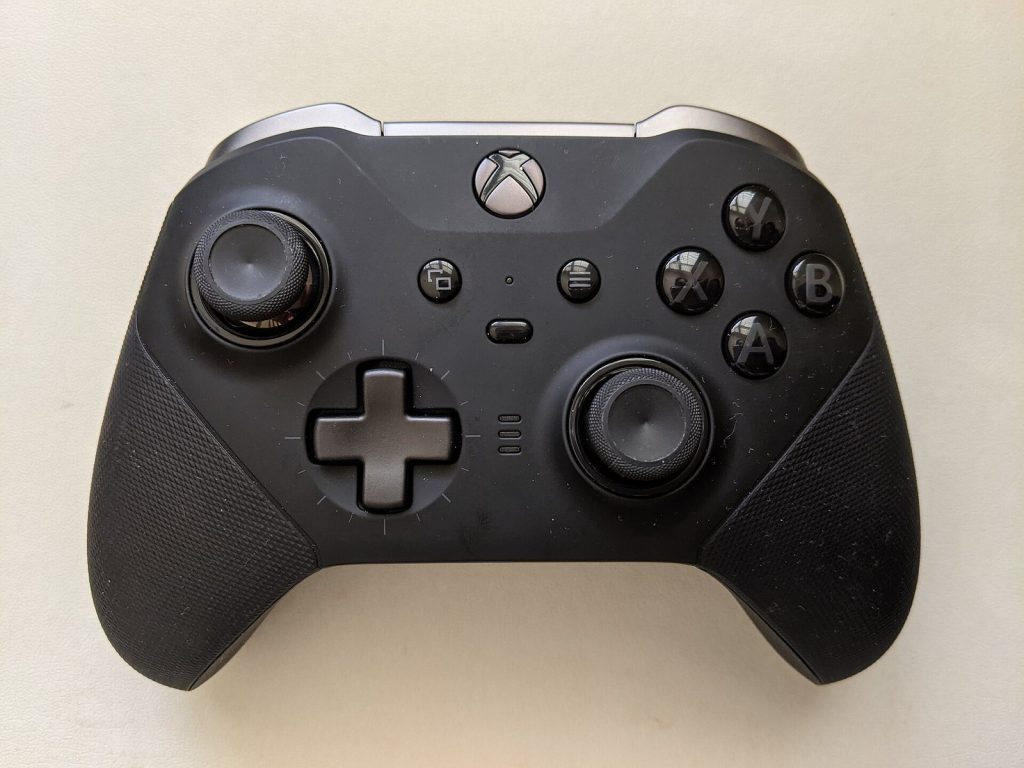
- Adjustable-tension thumbsticks with three tension settings, changed using an included tool.
- Four assignable rear paddles, in medium and mini sizes.
- Shorter hair trigger locks, which shorten trigger travel for faster input.
- On-controller profiles: up to three custom profiles plus a default profile, switched with a Profile button and configured in the Xbox Accessories app.
- An internal rechargeable battery rated at up to 40 hours per charge.
- Interchangeable components: different thumbstick toppers and a standard D-pad alongside the faceted one.
There is also an Elite Series 2 Core version that includes the controller, the adjustment tool and a USB-C cable, but leaves out the paddles, extra thumbsticks and D-pad, charging dock and carrying case. The core features, including adjustable tension, trigger locks and profiles, are the same. Missing parts can be added later through a separate component pack.
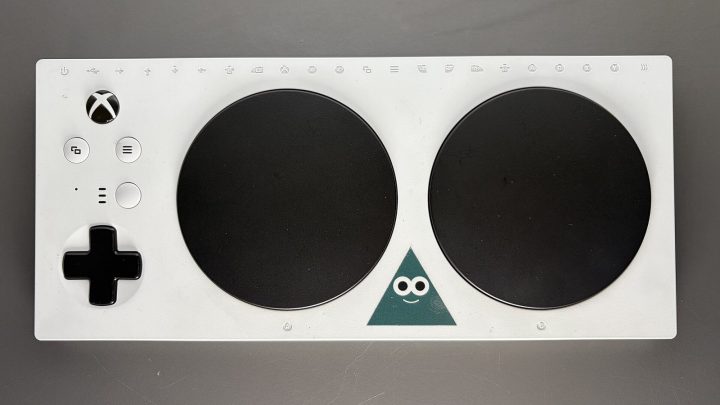
Xbox Adaptive Controller
The Xbox Adaptive Controller is designed primarily for gamers with limited mobility. Instead of being a traditional handheld pad, it is a flat unit with two large programmable buttons, a D-pad and a row of ports. According to Xbox.com, it provides:
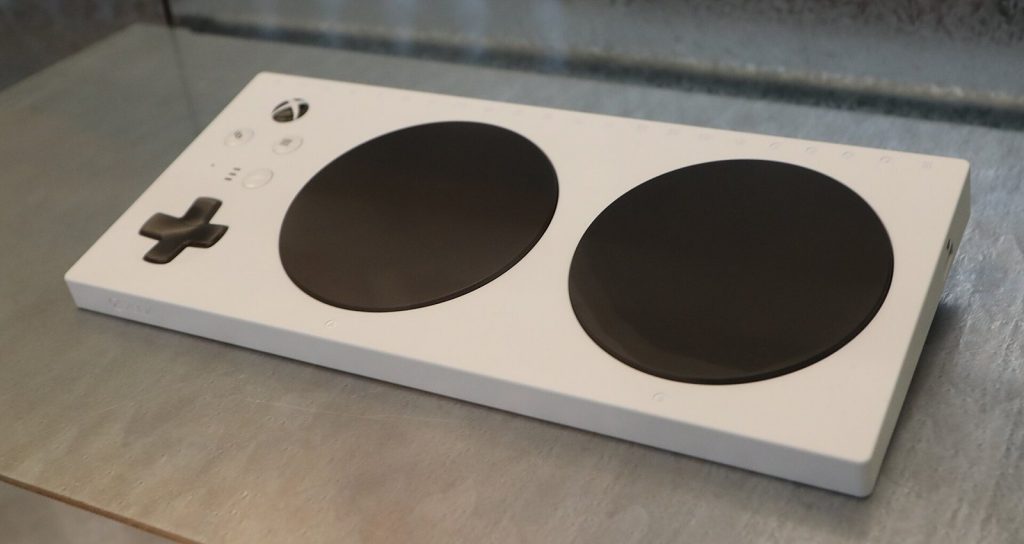
- Nineteen 3.5mm ports for external switches, buttons and other assistive inputs.
- Two USB ports for devices such as joysticks.
- A 3.5mm stereo headset jack.
- A Profile button that switches between three profiles, with remapping in the Xbox Accessories app.
- An internal rechargeable battery, and mounting points for wheelchair and tripod mounts.
It works with Xbox One, Xbox Series X|S and Windows PCs. Paired with the console’s Copilot feature, which lets two controllers act as one, it enables a player and a helper, or a player using two different input devices, to control the same game together. Copilot is found in the console’s accessibility settings for controllers.
How It Compares With Other Controllers
Older Xbox One controllers work on Series X|S, and Series X|S controllers work on Xbox One consoles, which makes it easy to keep using pads you already own. Xbox 360 controllers, however, do not work on Xbox One or Series X|S, as covered in our Xbox backward compatibility guide. If you are weighing Microsoft’s pad against Sony’s, our DualSense guide explains haptics and adaptive triggers, the main features the Xbox controller does not have.
Frequently Asked Questions
Does the controller have a built-in microphone?
No. Unlike the DualSense, the standard Xbox controller has no built-in microphone or speaker. For voice chat, plug a headset into the 3.5mm jack or use a wireless headset that connects to the console directly.
Can I use the controller while it charges?
Yes, if you use a rechargeable battery pack and a USB-C data cable, the controller keeps working as a wired controller while the pack charges. With standard AA batteries, connecting a cable powers the controller but does not recharge the batteries.
Will a new controller work on my old Xbox One?
Yes. The Series-era controller works with Xbox One consoles, and firmware updates through the Xbox Accessories app keep it current on either generation.
Is there vibration in the triggers?
Yes. Xbox controllers since the Xbox One include impulse triggers, small rumble motors behind the triggers that games can use for localized feedback. They are different from the DualSense’s adaptive triggers, which change resistance rather than vibrate.
Troubleshooting Quick Fixes
- Controller keeps disconnecting: replace or recharge the batteries first, then try a USB-C cable to rule out wireless interference.
- Won’t pair: connect via USB-C, or re-pair using the console’s Pair button.
- Controller switches to the wrong device: double-press the Pair button to switch between the console and the Bluetooth device.
- Odd behavior after an update: check the Xbox Accessories app for a newer firmware version.
- Buttons acting strangely in every game: check whether a button-mapping profile is assigned in Xbox Accessories.