Setting Up a New PS5: The First Hour, Step by Step
A step-by-step plan for your first hour with a PS5: sign-in, PS4 data transfer, updates, rest mode, privacy, family settings and game presets.

A new PlayStation 5 will happily let you skip most of its setup screens. That is convenient, but it means many people run for months with defaults they never chose: rest mode features they don’t use, a profile more public than they realize, or games starting in a graphics mode they would never have picked. The first hour is the cheapest time to get these right.
Menu names below follow Sony’s support pages; system updates occasionally move options, so if a label differs, look one level up in the same section. Everything applies to every current model, from launch consoles to the PS5 Pro. Not sure which you own? Our guide to every PS5 model explains how to tell them apart.
Before you plug anything in
Get your account ready
If you already have a PlayStation Network account from a PS4, use it. Sony notes that your PlayStation Plus subscription, trophies, friends and other account information sync to the PS5 when you sign in with the same account. While you are at it, open Account Management on playstation.com and turn on 2-step verification under Security, adding a mobile number for recovery.
Install the PlayStation App
During initial setup the PS5 shows a QR code you can scan with the PlayStation App or your phone’s camera to sign in, instead of typing a long password with a controller.
Prepare your PS4 if you are upgrading
If you plan to bring games and saves over from a PS4, Sony recommends a few steps on the old console first: sign in with the same account you will use on the PS5, install the latest PS4 system software, and manually sync your trophies. Download any PS4 games you want to move onto the PS4’s storage so they can be copied across.
Physical setup and the first boot
Connect the PS5 to your TV with the HDMI cable from the box rather than an old one; older cables are a common reason 4K at 120Hz or HDR fails to appear later. If only some of your TV’s HDMI ports support the newest features, use one of those. If you can, wire the console to your router with Ethernet: it is generally more stable for big downloads, and a PS4-to-PS5 transfer is faster when wired.
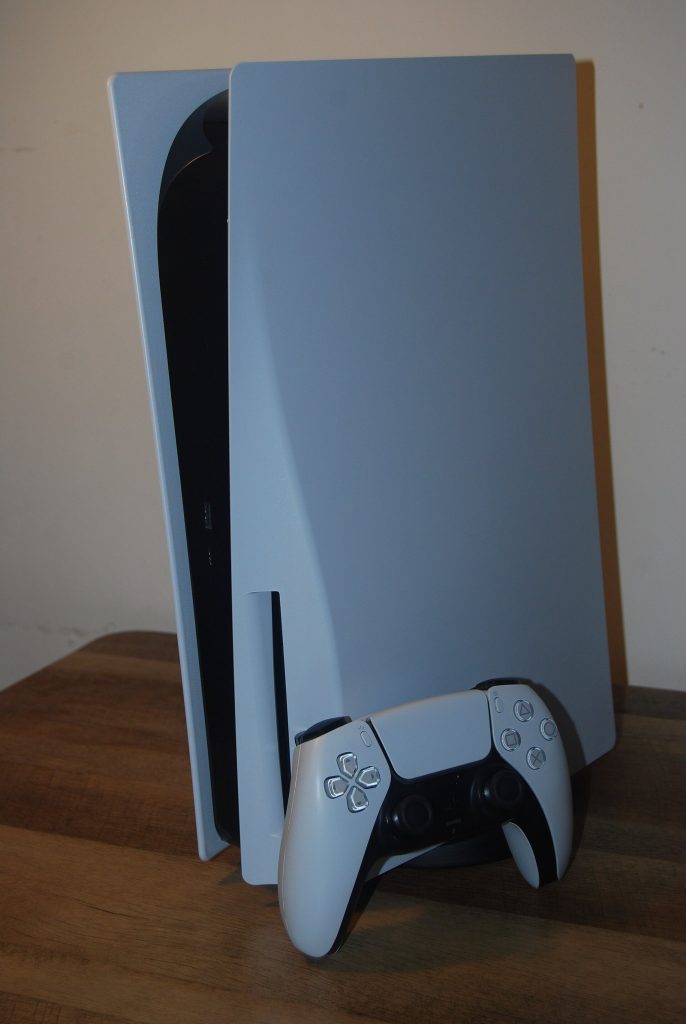
Turn on the console, connect the DualSense with the included USB cable and press the PS button to pair it. The on-screen setup then covers language, internet connection and the user agreement. Our DualSense controller guide covers the controller’s features once you are past setup.
Let the system update run
Once online, the PS5 will usually want the latest system software. Let it: new consoles can sit in warehouses for months, updates bring fixes and features, and some games require a recent system version to start.
Signing in and transferring data from a PS4
After the update, the console asks you to sign in. Scan the QR code with the PlayStation App, or sign in manually.
If you have a PS4 (or another PS5), the setup process offers a data transfer. You can accept it now or do it later. Sony’s support documentation lays out the rules:
- Both consoles must be on the same network, connected to the same router by Wi-Fi or Ethernet, and each powered by its own cord.
- One source to one destination. You can transfer from only one PS4 or PS5 to a given PS5 this way.
- Do not turn off either console or change network settings while the transfer is running, or data can be damaged or lost.
- Doing it during initial setup moves more. When the source is a PS4, transferring during initial setup can bring users and account information and console settings, as well as saved data and games playable on PS5. After setup, Sony’s table shows only saved data (for the logged-in user) and games.
- Data already on the PS5 is not overwritten. Games or saved data that already exist on the destination console don’t transfer.
The PS5 restarts during the transfer, and you can start using it once it comes back. Game data may still be copying in the background; a game becomes playable once its tile appears on the home screen, and you can check progress under Downloads/Uploads in the control center.
If you skip the transfer during setup, you can start it later from Settings > System > System Software > Data Transfer with the source console turned on.
Other ways to bring data across
- PS Plus cloud saves: members can download saved data from cloud storage instead of transferring it console to console.
- USB extended storage: if your PS4 games already live on a USB drive formatted as extended storage, plug that drive into the PS5 and sign in with the same account. PS4 games can play directly from it.
- Discs and digital libraries: digital games can simply be redownloaded from your game library, and disc games installed from the disc (on a PS5 with a disc drive).
Most PS4 games run on PS5, but not all; see our PS5 backward compatibility guide for how that works and where to check exceptions.
A note on child accounts
Sony states that you cannot transfer data during initial setup with a child account. Either finish setup with the child account and transfer afterward, or run initial setup with an adult account and transfer data for both the adult and the child during that process.
Rest mode and power saving: decide what stays on
Rest mode is the PS5’s low-power state, entered from the power icon in the control center or with a single press of the console’s power button. It lets you resume suspended games quickly.
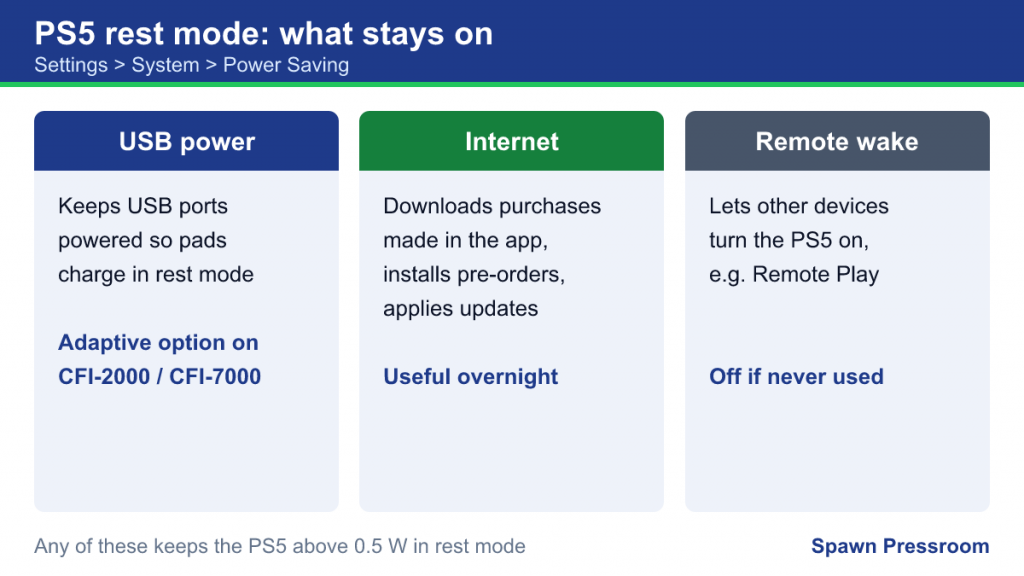
Two settings are worth reviewing under Settings > System > Power Saving:
Time until the PS5 enters rest mode
By default the console drops into rest mode after a period of inactivity. You can change the timer, or choose Don’t Put in Rest Mode, although Sony points out that leaving the console fully on uses more power.
Features available in rest mode
These are the options that decide what the console does while it rests:
- Supply Power to USB Ports keeps the ports powered so controllers charge overnight. Newer CFI-2000 and CFI-7000 models also offer an Adaptive option.
- Stay Connected to the Internet lets the console download purchases made from the PlayStation App, install pre-ordered games and apply automatic updates while resting.
- Remote-wake options, used by features such as Remote Play, let other devices turn the console on over the network.
The trade-off is energy use. Sony notes that enabling any of these features stops the PS5 from dropping below 0.5 W in rest mode, and more features mean more power drawn. Keep internet access on if you want overnight updates, enable USB power only if you charge controllers from the console, and switch off what you never use. And never pull the plug mid-update; use rest mode or a proper shutdown.
Updates and downloads that take care of themselves
Under Settings > System > System Software > System Software Update and Settings you can enable automatic download and installation of system updates. Sony notes that automatic updating happens in rest mode, so the console must be allowed to stay connected to the internet in rest mode for this to work. Some updates may still ask for your approval.
Installing a system update in rest mode can close suspended games, so save before you put the console down.
Privacy defaults: choose who sees what
Privacy settings are tied to your account, not just the console, so changes apply wherever you sign in. Go to Settings > Users and Accounts > Privacy.
Sony offers presets that run from fully open (anyone can see your profile information) to fully closed (no one, including friends, can see your profile or invite you to chat), with options in between that limit visibility to friends or friends of friends. If none fit exactly, choose Review and Customize to set individual items, such as who can see your real name, activity and gaming history, who can send friend requests, and who can see your captures.
A friends-only setup is a sensible start for most adults; think twice before showing your real name publicly.
Family settings if children will use the console
If anyone under 18 will play, set up family management now rather than after the first surprise purchase. Parental controls are managed per account through a family manager, which is an adult account that creates and controls child accounts.
According to Sony, a family manager can manage playtime, control spending from the family manager’s wallet, restrict access to games, videos and apps by age rating, disable messaging and voice chat, block content created by other players, and appoint other adults as guardians who can change controls too. These settings can be configured on the console under Settings > Family and Parental Controls, on the web through Account Management’s Family Management section, or through the PlayStation Family app.
Give each child their own child account rather than letting them play on an adult profile, since controls only apply to child accounts.
Game presets: set your defaults once
This is the setting most new owners never find. Go to Settings > Saved Data and Game/App Settings > Game Presets. Here you can set defaults that supporting games read automatically when they start:
- Performance Mode or Resolution Mode: choose whether games that offer both should default to smoother frame rates or higher image quality.
- Difficulty: a default difficulty for games that support the preset.
- Camera inversion: separate options for first-person and third-person views, so you do not have to flip the camera in every new game.
- Subtitles and audio language: whether subtitles appear by default and which language audio should use.
Presets only work with games that support the feature, and you can always change a game’s own settings later. Still, setting them once now saves you a trip into every new game’s options menu. If you prefer performance modes, note that frame rates above 60 require a TV or monitor capable of 120Hz.
Quick wins for the rest of the hour
With the essentials done, a few smaller checks round out the setup:
- HDR calibration: if your TV supports HDR, run the HDR adjustment under Settings > Screen and Video, following the on-screen prompts until the symbols are barely visible.
- Accessibility: options such as text size, high contrast, button remapping and closed captions are worth a look even if you don’t think you need them.
- Storage: check how much internal space is free; large games fill the SSD quickly.
- PlayStation Plus: if you subscribe, confirm that saves are uploading to cloud storage. Each PS Plus tier includes online cloud storage for saves.
Frequently asked questions
Can I skip the data transfer and do it later?
Yes. Start it any time from Settings > System > System Software > Data Transfer. Just note that a post-setup transfer from a PS4 moves less (saved data and games, not console settings or other users).
Can PS5 games run from a USB drive?
PS5 games can be stored on USB extended storage but not played from it; they need to be copied back to internal storage or an M.2 SSD expansion drive. PS4 games can play directly from USB extended storage.