Expanding PS5 Storage: M.2 SSDs and USB Drives Explained
What PS5 games can run from an M.2 SSD versus a USB drive, Sony's M.2 requirements, how installation works and how to manage your library.
Modern PS5 games are large, and the console’s internal SSD fills up faster than most people expect. Depending on the model, a PS5 ships with 825GB, 1TB or, on the PS5 Pro, 2TB of internal storage, and part of that is reserved for the system software. Install a handful of big releases plus their updates and you will soon be deleting games to make room for new ones.
Sony offers two ways to add space: an internal M.2 SSD slot and USB extended storage. They are not interchangeable. One can play PS5 games, the other cannot. This guide explains what each option does, what Sony requires, how installation works at a high level and how to organize your library across them. It deliberately avoids brand recommendations and prices, which change constantly; the requirements below are what matter when you compare drives.
Two kinds of extra storage, two different jobs
| M.2 SSD (internal slot) | USB extended storage | |
|---|---|---|
| Play PS5 games from it | Yes | No (storage only) |
| Play PS4 games from it | Yes | Yes |
| Download and update games directly to it | Yes | PS4 games only |
| Installation | Inside the console, screwdriver required | Plug into a USB port |
| Capacity range Sony supports | 250GB to 8TB | 250GB to 8TB |
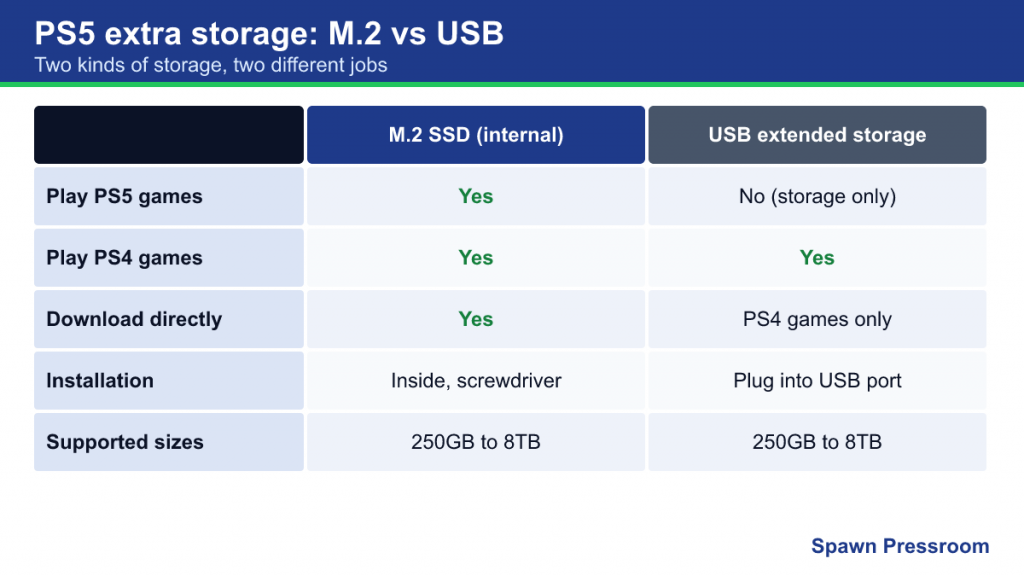
The reason for the split is speed. PS5 games are designed around the very fast internal SSD and can assume they will stream data from it at high speed. A USB drive, even a fast external SSD, is not guaranteed to keep up, so Sony only allows PS5 games to be stored there, not played. PS4 games were built for the much slower hard drives of their generation and run fine from USB.
Sony’s M.2 SSD requirements
The M.2 slot became usable through a system update in 2021 and is present on every PS5 model. Sony’s support page lists these requirements:
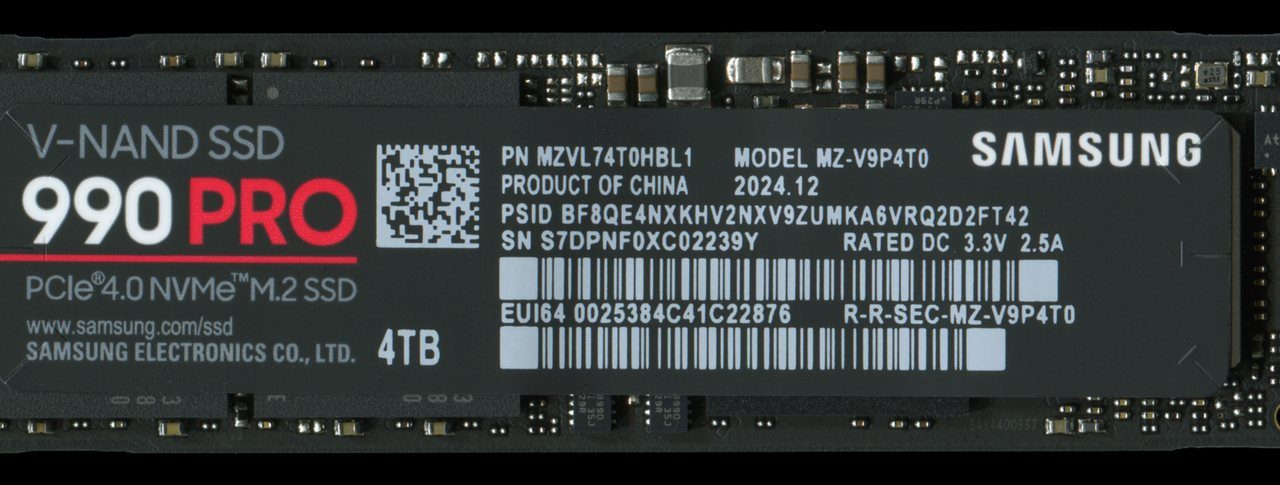
- Interface: PCIe Gen4 x4 NVMe M.2 SSD (M key). SATA-based M.2 drives are not supported, and older PCIe Gen3 drives do not meet the requirement.
- Capacity: 250GB to 8TB.
- Form factors: 2230, 2242, 2260, 2280 or 22110. The numbers describe width and length in millimeters; 2280 is the most common.
- Speed: a sequential read speed of 5,500MB/s or faster is recommended. Sony notes that even with a fast drive, some games may not perform exactly as they do on internal storage.
- Size including cooling: up to 25mm wide and up to 11.25mm thick in total, with no more than 8mm above the board and 2.45mm below it.
- Heat dissipation: a heatsink or heat transfer sheet is required. Drives with built-in heatsinks are fine, as long as the total fits the dimensions above. Do not add a second heatsink to a drive that already has one.
Sony also notes that drives relying on Host Memory Buffer (HMB) technology are not supported in that mode, so some budget drives may underperform. Before buying, check the drive’s specification sheet for interface generation, read speed and the height of any heatsink.
Why the heatsink rule matters
Fast Gen4 drives can get hot under sustained load, and an overheating SSD throttles its speed to protect itself. The PS5’s slot sits in the console’s airflow, but Sony still requires a cooling solution. The height limit is the part people most often get wrong: some aftermarket heatsinks designed for PCs are too tall and stop the slot cover from closing.
Installing an M.2 SSD: what to expect
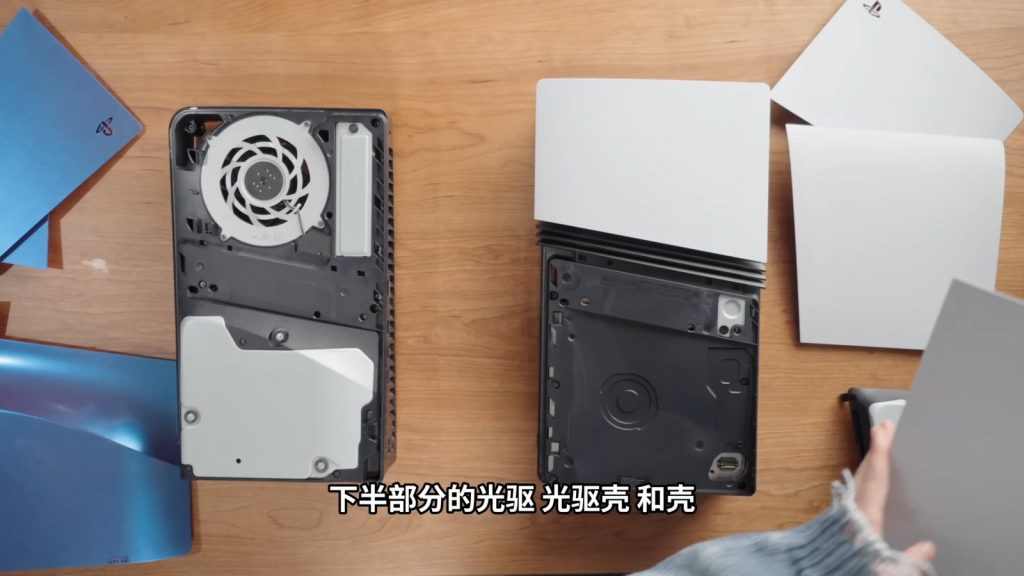
Installation is a simple job that takes a few minutes, but it differs depending on which PS5 you have. If you are unsure, our guide to every PS5 model explains how to identify yours by model number.
Before you start
- Update the PS5’s system software.
- Turn the console fully off (not rest mode), unplug every cable and let it cool.
- Use a #1 Phillips (cross-head) screwdriver.
- Touch a grounded metal object to discharge static before handling the drive.
- Never turn on the console with its covers removed.
Original PS5 models (CFI-1000 group)
On the launch-era consoles, you remove the base and slide off the side cover to reach the expansion slot. Remove the slot cover’s screw, move the spacer to the position that matches your drive’s length, insert the drive at an angle into the connector, press it down flat onto the spacer and secure it with the screw. Replace the slot cover and side cover, reattach the base and reconnect the cables.
Slimmer PS5 and PS5 Pro (CFI-2000 and CFI-7000 groups)
Newer consoles make it easier. You remove a small cover on the console’s exterior to expose the slot, then follow the same pattern: remove the screw and slot cover, adjust the spacer, insert the drive at an angle, press it down and secure it.
Formatting
After you turn the console back on, it detects the new drive and asks to format it. Formatting erases everything on the drive and the whole drive is formatted; partial formatting is not supported. Do not turn off power while the drive is formatting.
If you later move an M.2 SSD from one PS5 to another, it does not need to be reformatted, but you need to sign in to the same account on both consoles to use its games.
Using USB extended storage
USB extended storage is the easy, no-tools option. Plug in an external drive, format it, and use it as a library warehouse.
Requirements and rules
- The drive must support SuperSpeed USB 5Gbps or faster and be between 250GB and 8TB.
- Connect it directly to the console, not through a USB hub.
- Only one USB drive can be used as extended storage at a time.
- Format it under Settings > Storage > USB Extended Storage > Format as USB Extended Storage. Formatting erases the drive.
- A drive already formatted as extended storage on a PS4 or another PS5 can be connected without reformatting.
What it is good for
Extended storage is ideal for PS4 games, which can be installed to it directly and played from it. That frees internal space for PS5 games. It is also useful for parking PS5 games you are not currently playing: copying a game back from a USB drive is usually much faster than downloading it again, especially on a slow connection, and it saves your monthly data allowance if you have one. If you are coming from a PS4 with a USB drive, see our PS5 first setup guide for how to bring it over.
Removing the drive safely
Before unplugging, go to Settings > Storage > USB Extended Storage > Safely Remove from PS5. If the console is off, wait until the power indicator is completely off. Pulling the drive while it is in use can corrupt data.
Managing your library across drives
Once you have more than one storage location, a little organization saves time.
- Set install locations. In the Storage settings you can choose where PS4 games install by default. Sending them to USB extended storage keeps the fast storage free for PS5 games.
- Move games between drives. Games can be moved between internal storage, the M.2 SSD and USB extended storage. A single game’s data must live in one place; it cannot be split across drives.
- Copy back before playing. A PS5 game parked on USB storage must be copied back to internal storage or the M.2 SSD before it will launch.
- Keep the busiest games on internal storage. If a game shows performance problems from the M.2 drive, Sony suggests pausing downloads, letting disc installs finish or moving the game to internal storage.
Common mistakes and how to avoid them
- Buying a Gen3 or SATA drive. The PS5 needs a PCIe Gen4 NVMe drive. A drive can look identical and still be the wrong type.
- Ignoring heatsink height. If the slot cover will not close, the cooling solution is too large. Do not force it.
- Expecting PS5 games to run from USB. They can be stored there, never played.
- Plugging extended storage into a hub. The PS5 does not support it. Use a port on the console.
- Forgetting the M.2 drive before a repair. Sony advises removing the drive before sending the console in for service.
- Unplugging mid-write. Always use Safely Remove for USB storage, and never cut power while formatting.
Which option suits you?
If you mainly play new PS5 releases and are constantly juggling installs, the M.2 slot is the meaningful upgrade: it increases the space you can actually play from. If your library leans on PS4 games, or you mostly want somewhere to park installs and avoid redownloading, USB extended storage is cheaper, easier and needs no tools. Many players end up using both, with PS5 games split between internal and M.2 storage, and PS4 titles plus inactive PS5 games on USB. Our PS5 backward compatibility guide explains which PS4 games run on PS5 in the first place.
Frequently asked questions
Can I use an M.2 drive and a USB drive at the same time?
Yes. They are separate storage locations, and you can move games between them and internal storage.
Will an M.2 SSD make games load faster than the internal drive?
Do not expect that. Sony’s requirements aim for drives that keep up with internal storage, and Sony notes some games may not perform identically even with fast drives. It is a capacity upgrade, not a speed upgrade.
Do I lose data on the internal SSD when I install an M.2 drive?
No. Only the new drive is formatted. Your internal storage is untouched.