TV Settings for PS5 and Xbox: 4K, 120Hz, HDR and VRR
How 4K, 120Hz, HDR, VRR and ALLM work on PS5 and Xbox Series X|S, where each console setting lives, and the pitfalls that hide them.
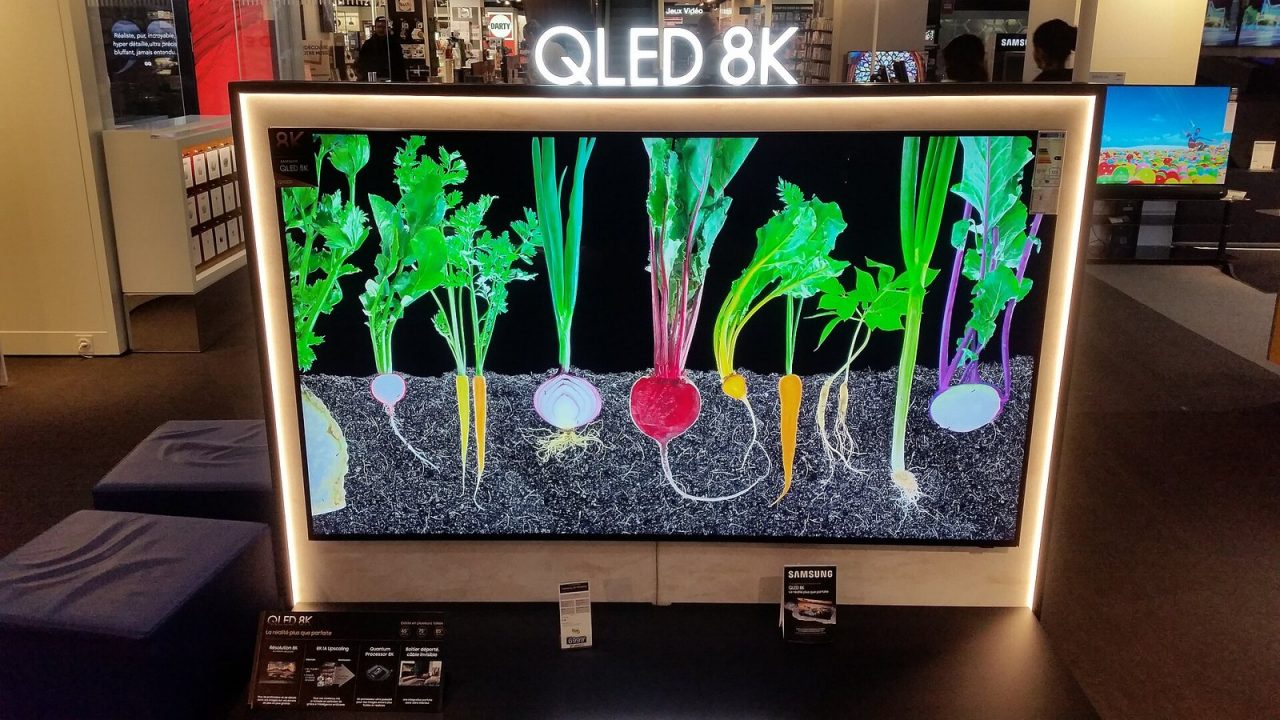
Modern consoles can output more than many TVs are set up to receive. A PS5 or Xbox Series X|S connected to a capable TV can deliver 4K, frame rates up to 120 per second, HDR and variable refresh rate. But each of those features depends on a chain of conditions: the console setting, the cable, the HDMI port, the TV’s own input settings and the game itself. When any link is missing, the option is greyed out or simply never appears.
This guide explains what each feature does and how to switch it on from the console side. It is not a TV buying list; the goal is to get the most out of the screen you already have.
The building blocks: HDMI 2.1, resolution and refresh rate
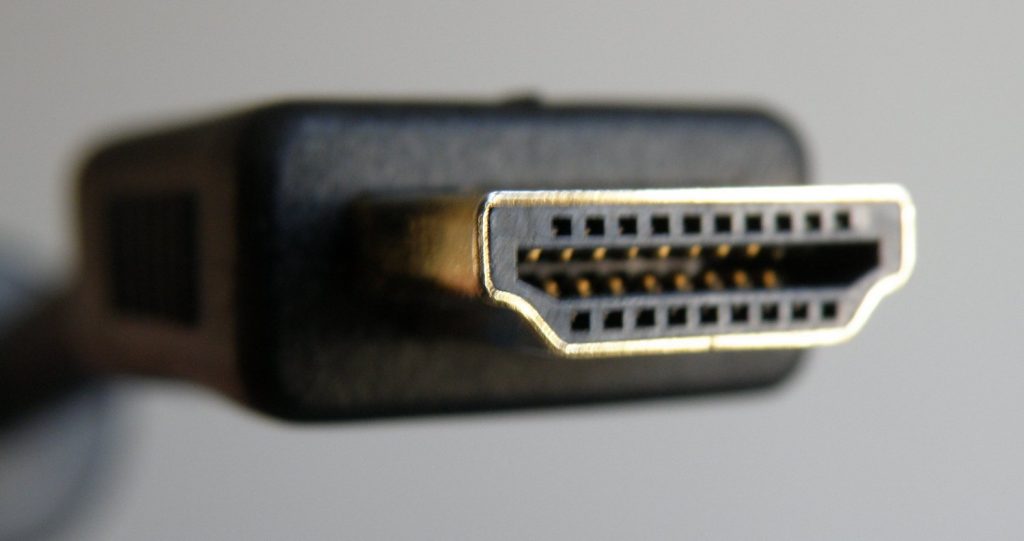
Every current PlayStation and Xbox console has an HDMI 2.1 output. HDMI 2.1 matters because it carries far more bandwidth than the older HDMI 2.0 standard, which is what makes 4K at 120Hz with HDR possible over a single cable, and it also defines features such as variable refresh rate (VRR) and auto low latency mode (ALLM).
A few terms to keep straight:
- Resolution is the number of pixels in the image the console sends: 1080p, 1440p or 4K (2160p). A game may render internally at a lower resolution and upscale, but the console’s output setting decides what reaches the TV.
- Refresh rate is how many times per second the TV draws a new image, usually 60Hz or 120Hz. A 120Hz output is only useful if a game actually runs above 60 frames per second.
- Frame rate is how many frames the game produces per second. It is set by the game, often through a performance or quality mode.
On an HDMI 2.0 TV, you can usually get 4K at 60Hz with HDR, or a lower resolution at 120Hz on some sets, but not 4K at 120Hz. That limitation lives in the TV, not the console.
What each console targets
Microsoft lists the Xbox Series X as a native 4K console with up to 120 frames per second on supported content and displays, and the Series S as a 1440p console that can upscale to 4K, also with up to 120 frames per second where supported. Both PS5 models and the PS5 Pro output 4K and support 120Hz with compatible games and displays. Model differences beyond output are covered in our PS5 models guide and our Series X vs Series S comparison.
Game mode and ALLM: cutting input lag
TVs apply image processing such as motion smoothing and noise reduction, which adds delay between pressing a button and seeing the result. Game mode switches most of this off. For anything interactive, game mode should be on.
Auto low latency mode (ALLM) automates the switch. When the console signals that a game is running, an ALLM-capable TV changes to its low-latency mode by itself, and can switch back when you open a movie app.
- PS5: ALLM arrived in a system update in July 2022. The setting is under Settings > Screen and Video > Video Output > ALLM, with Automatic and Off options. Even with Off selected, the PS5 still uses ALLM during VRR output.
- Xbox Series X|S: Microsoft lists ALLM among both consoles’ features. The toggle sits under Settings > General > TV & display options > Video modes.
If your TV lacks ALLM, simply select the TV’s game picture mode on the console’s HDMI input manually. Many TVs remember picture settings per input, so you only need to do it once.
Setting up 120Hz output
A 120Hz signal lets supported games run at up to 120 frames per second, which mainly improves motion clarity and responsiveness.
On PS5
Under Settings > Screen and Video > Video Output, the 120Hz output option can be set to Automatic. With Automatic selected, the console switches to 120Hz when a game that supports it is running and the display can accept it. Many games that support 120Hz expose it as a performance or high frame rate mode in their own menus, so check the game’s settings too.
On Xbox Series X|S
Under Settings > General > TV & display options, choose 120Hz as the refresh rate if your TV supports it. If the option is missing, the console has not detected 120Hz support on that input. The same screen shows your TV’s reported capabilities, which helps when troubleshooting.
Resolution vs 120Hz trade-offs
Some setups force a choice. On HDMI 2.0 TVs, or when the signal passes through older equipment, you may get 120Hz only at a lower resolution. Some players happily accept 1440p or 1080p at 120Hz for fast games; others prefer 4K at 60Hz for slower, cinematic ones. Neither is wrong.
Variable refresh rate (VRR)
Without VRR, the TV refreshes at a fixed rate. If the game’s frame rate dips below that, the result is stutter or screen tearing. VRR lets the TV adjust its refresh rate to match the frames the console is producing, so small dips look much smoother.
- PS5: VRR support began rolling out in April 2022. According to the PlayStation Blog, it requires an HDMI 2.1 VRR-compatible TV or monitor, turns on automatically for supported games, and can be controlled under Settings > Screen and Video. An optional setting applies VRR to games without built-in support; Sony notes this may improve some games and can be turned off if it causes unexpected visual effects.
- Xbox Series X|S: Microsoft lists HDMI VRR and AMD FreeSync support for both consoles. Enable it under Video modes in TV & display options.
VRR works within a range. If a game drops below the bottom of your TV’s VRR range, the benefit disappears. VRR smooths uneven performance; it does not make a game faster.
HDR: turning it on and calibrating it
High dynamic range expands the range between the darkest and brightest parts of the picture and allows wider color. Done well, highlights such as sunlight and explosions look strikingly bright while shadows keep detail. Done badly, HDR looks dim, washed out or crushed.
Formats
Both consoles support HDR10, the common baseline format. The Xbox Series X|S also support Dolby Vision for gaming on compatible TVs, enabled in Video modes. Xbox’s Auto HDR can add an HDR-like presentation to many older games that were made in standard dynamic range.
Calibration
Each console includes a calibration tool that tells games the brightness limits of your particular TV:
- PS5: Settings > Screen and Video > Video Output > Adjust HDR. You adjust three screens until a symbol is barely visible.
- Xbox Series X|S: Settings > General > TV & display options > Calibrate HDR for games, a guided step-by-step process.
Run calibration in the same TV picture mode you use for games. If you change picture modes later, run it again. Many games also have their own HDR sliders; when they do, follow each game’s instructions.
Common HDR mistakes
- Leaving the TV’s dynamic contrast or similar processing on, which fights the console’s calibration.
- Calibrating in a bright showroom-style mode, then playing in a different one.
- Expecting HDR to look good on TVs with low peak brightness. HDR is supported on many budget sets, but the effect is limited by the panel.
The most common reasons features don’t appear
When 120Hz, VRR or HDR is greyed out, work through this list in order.
- Wrong HDMI port. Many TVs have only two HDMI 2.1 ports, or even one, often shared with the eARC audio port. Check your TV’s manual or input labels and move the console there.
- The TV’s enhanced signal setting is off. Most TVs ship with HDMI inputs in a compatibility mode that limits bandwidth. The setting goes by different names depending on the brand, but it is usually found in the TV’s external input or HDMI settings and must be enabled per port.
- Old or long cable. Use the cable that came with the console or one certified for high bandwidth. An older cable can quietly cap the signal.
- Something in between. A soundbar, AV receiver or HDMI switch between console and TV must support the same bandwidth and features. If in doubt, connect the console directly to the TV and send audio back through eARC.
- Game mode is off. Some TVs only allow VRR or their lowest latency in game mode.
- The game doesn’t support it. 120Hz needs a game with a 120Hz mode. Some games lock their frame rate.
- The console needs to re-detect the TV. After changing TV settings, restart the console or switch inputs so it reads the TV’s capabilities again.
Settings you can usually leave alone
Both consoles have advanced options that should normally stay on their defaults:
- Color depth and RGB range: automatic settings work for nearly every TV. Forcing values can cause crushed blacks or washed-out images if the TV is set differently.
- Resolution override: leave resolution on automatic unless you are troubleshooting or intentionally choosing 1440p or 1080p for 120Hz on a limited display.
- Allow 24Hz or 50Hz on Xbox: these help video playback match film or regional broadcast rates and do not affect games.
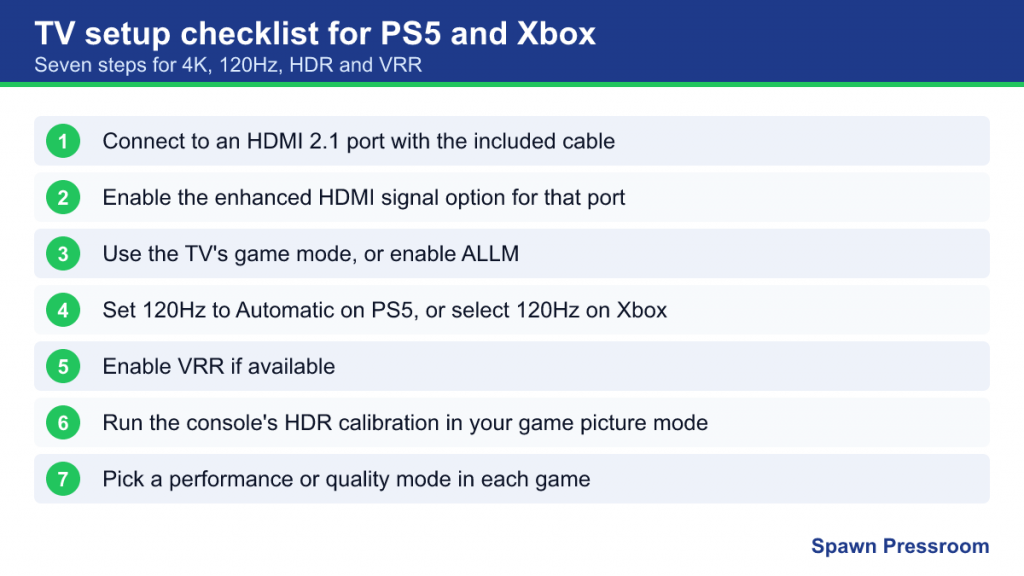
A quick setup checklist
- Connect the console directly to an HDMI 2.1 port with the included cable.
- Enable the enhanced HDMI signal option for that port on the TV.
- Choose the TV’s game mode, or enable ALLM on both console and TV.
- Set 120Hz to Automatic on PS5, or select 120Hz on Xbox, if your TV supports it.
- Enable VRR if available.
- Run the console’s HDR calibration in your gaming picture mode.
- In each game, pick a performance or quality mode based on what you value. If you haven’t set up your console yet, our PS5 first setup guide covers system-wide game presets.