DualSense Controller Guide: Haptics, Triggers and Settings
What the PS5 DualSense does: haptics, adaptive triggers, mic and mute, Create button, the settings that matter, and how the DualSense Edge differs.
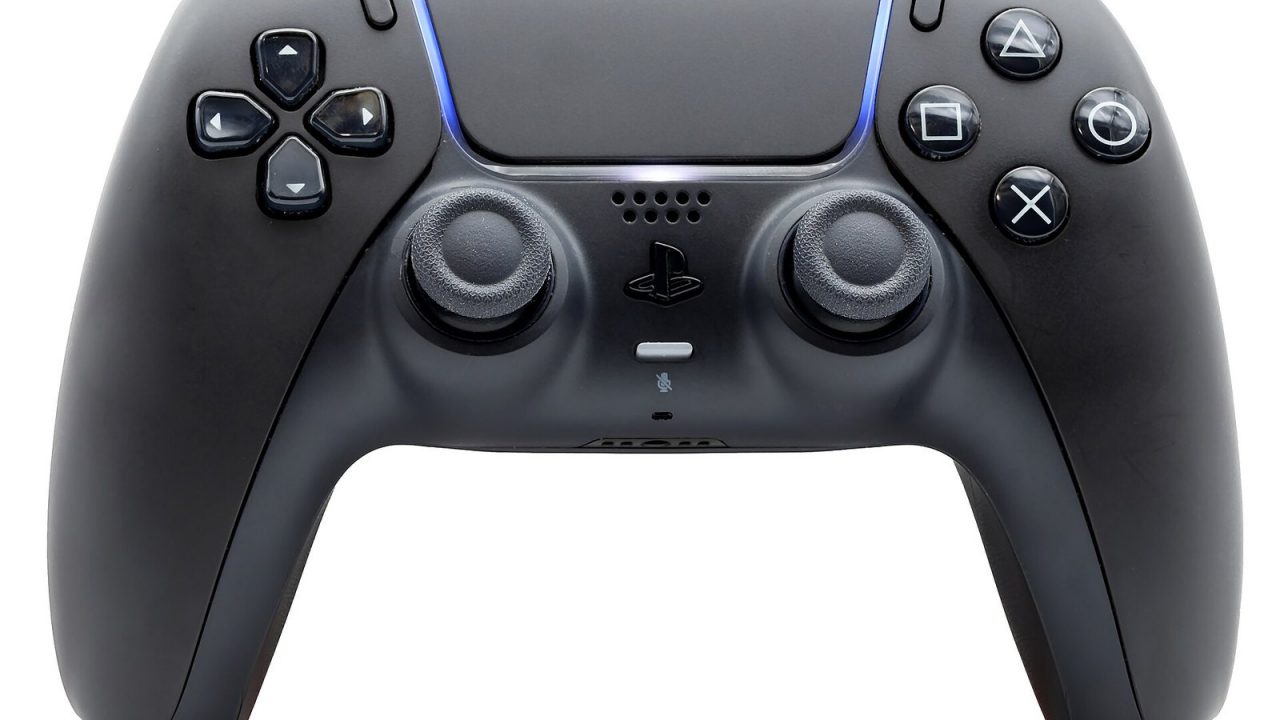
The DualSense is the controller that ships with every PS5, and it is one of the console’s defining features. It keeps the familiar PlayStation layout that dates back to the original DualShock, but almost everything inside is new: precise vibration actuators, triggers that can push back against your fingers, a built-in microphone and speaker, and a Create button for captures. This guide explains what each feature does, which settings change how it behaves, and how the premium DualSense Edge differs from the standard pad.
Haptic Feedback: More Than Rumble
Older controllers vibrated using spinning rumble motors with off-center weights, which could only produce a fairly blunt shake. The DualSense replaces those with two haptic actuators, small voice-coil motors that can produce a much wider range of vibrations, from strong jolts to faint taps.
Because the actuators respond quickly and precisely, developers can use them to suggest textures and events: footsteps on different surfaces, raindrops, the tension of a bowstring or the click of a mechanism. Haptics can also be directional, so an effect can feel stronger on one side of the controller than the other.
Support depends entirely on the game. Sony’s own studios have used haptics extensively, and the PS5’s pre-installed showcase game was built around them. Many multiplatform games use haptics more lightly, and some barely at all. PS4 games running on PS5 use a simpler rumble emulation rather than true haptic effects.
Adaptive Triggers
The L2 and R2 triggers contain small motors and gears that can change their resistance. A game can make a trigger stiff, give it a tension point partway through its travel, or create a rapid pulsing effect.
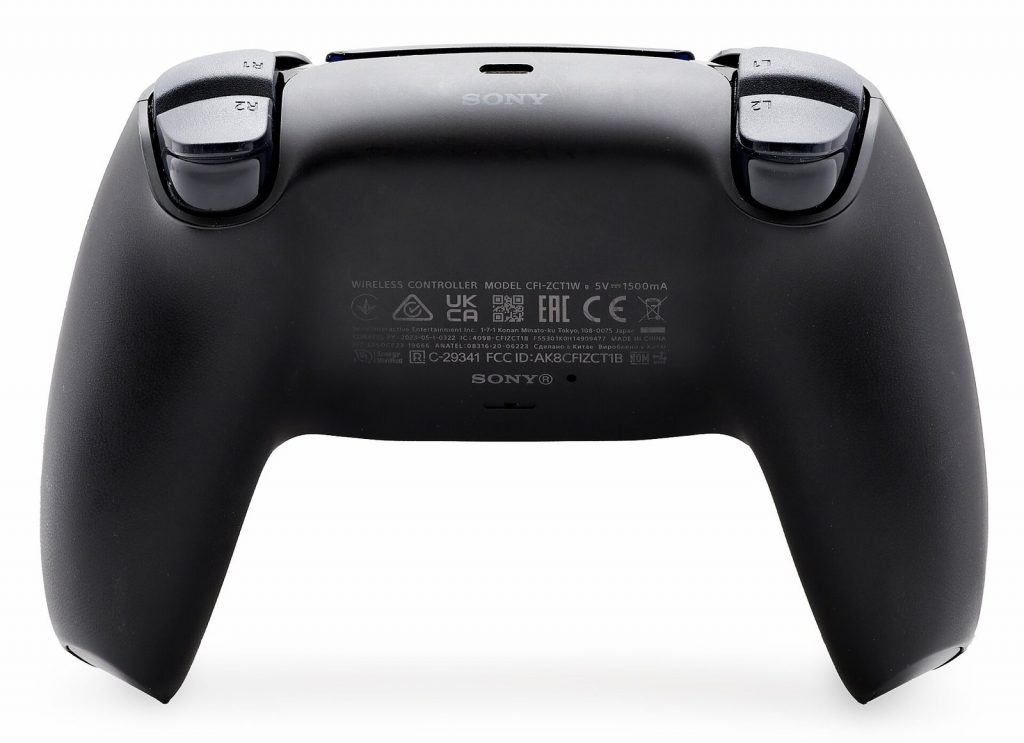
Typical uses include:
- Increasing tension as you draw a bow or squeeze a brake.
- A firm “break point” that simulates a weapon trigger or a switch.
- Vibrating trigger feedback, such as a machine gun or an engine.
- Locking a trigger to indicate that an action is unavailable, for example when a weapon jams.
Like haptics, adaptive triggers are only active in games that support them. Some players find strong trigger resistance tiring in long sessions, which is why the system and many games let you reduce or switch it off.
Microphone, Speaker and the Mute Button
Every DualSense has a built-in microphone array, so you can voice chat without a headset. There is also a small built-in speaker that games use for sound effects or dialogue, and a 3.5mm headset jack on the bottom edge for wired headphones or headsets.
How the mute button works
The small button below the PS button controls your microphone. According to PlayStation Support:
- Press it to mute or unmute your microphone.
- Press and hold it to mute your microphone and all speaker output. The button glows orange while muted. Press it again to return to normal.
A sensible default for many players is to keep the mic muted at login. On the PS5, the setting that controls whether your microphone starts muted or unmuted is under Settings > Sound > Microphone. Note that the built-in mic also picks up the controller’s own sounds and the room around you, so a headset gives clearer chat.
Create Button, Touchpad and Motion Sensors
Create button
The Create button, to the left of the touchpad, replaced the PS4’s Share button. Pressing it opens the create menu, where you can take a screenshot, save a recent gameplay clip, start a new recording or begin a broadcast. You can change its shortcuts in the PS5’s capture settings so that a single press takes a screenshot or a long press saves a clip, which is handy if you capture often. The Create button is also used for pairing: holding Create and the PS button together puts a controller into pairing mode.
Touchpad
The large touchpad in the center can detect swipes and taps, and the whole pad clicks as a button. Many games use it for maps or menus, and some use swipe gestures. The light bar strips on either side of the touchpad show the player color and game-specific lighting.
Motion sensors
Built-in motion sensors (a gyroscope and accelerometer) let games read how you tilt and move the controller. Some games offer optional gyro aiming, which many players find more precise than sticks alone once they are used to it.
Settings Worth Knowing
Most controller options live under Settings > Accessories > Controller (General). The ones most players adjust:
- Vibration Intensity: reduces or turns off haptics and rumble globally. Useful for long sessions or quieter play late at night.
- Trigger Effect Intensity: reduces or disables adaptive trigger resistance across games.
- Controller indicator brightness: dims the light bar and player indicators.
- Controller speaker volume: sets how loud the built-in speaker is, or mutes it.
Many games also offer their own vibration and trigger settings, which apply on top of the system settings. If a game feels too intense, check both places.
Audio quick settings
Press the PS button and select Sound in the Control Center to change the output device, adjust volume and set the balance between game audio and voice chat.
Checking battery level
Press the PS button and open Accessories in the Control Center to see the battery level of each connected controller.
Getting More From the Battery
The DualSense’s battery is built in, and features such as haptics, trigger motors and the light bar all draw power. If you find yourself charging more often than you would like, a few adjustments help:
- Lower Vibration Intensity and Trigger Effect Intensity. These are the biggest draws in games that use them heavily.
- Dim the controller indicators. The light bar is not essential for most games.
- Set an automatic turn-off time. In the PS5’s power-saving settings you can choose how long an idle controller stays on before switching itself off.
- Use a headset instead of the controller speaker when games route sound through it.
- Charge during rest mode. If USB power is enabled in rest mode, controllers plugged into the console keep charging while it sleeps.
Pairing, Charging and Updates
- First pairing: connect the controller to the PS5 with a USB cable and press the PS button.
- Additional controllers: go to Settings > Accessories > General > Bluetooth Accessories on the first controller, then hold Create and PS on the new controller until its light bar blinks, and select it on screen. Up to four controllers can be used at once.
- Multiple devices: a DualSense can store up to four pairings (for example, a PS5, a PC and a phone) and switch between them using a button combination described on PlayStation Support.
- Charging: the controller charges over USB-C from the console, including while the console is in rest mode. Use a cable that supports data, not a “charge only” cable.
- Updates: controller firmware updates usually arrive with PS5 system updates; you can also check manually under Settings > Accessories > Controller (General).
- Reset: if the controller stops responding, a small reset button sits inside a hole on the back near the Sony logo. Hold it for at least five seconds with the console off, then reconnect with a USB cable.
DualSense Edge: What the Pro Controller Adds
The DualSense Edge, released in January 2023, is Sony’s premium controller. It keeps all standard DualSense features, including haptics, adaptive triggers and the microphone, and adds customization aimed at competitive and enthusiast players.
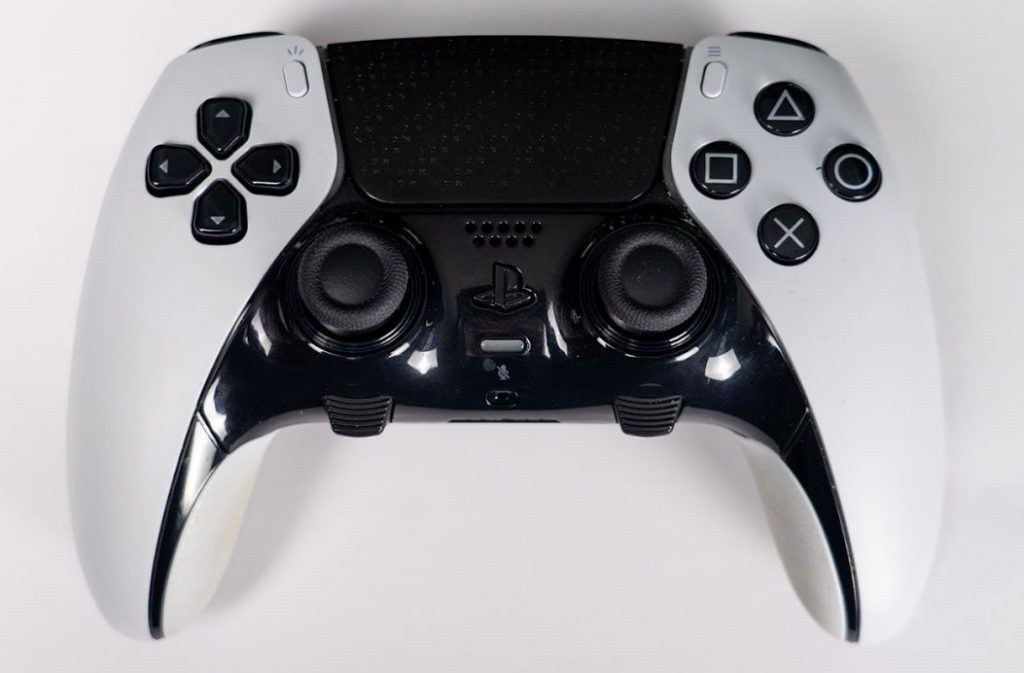
| Feature | DualSense | DualSense Edge |
|---|---|---|
| Haptics and adaptive triggers | Yes | Yes |
| Back buttons | No | Yes, two, with swappable half-dome and lever styles |
| Interchangeable stick caps | No | Yes (standard, high dome, low dome) |
| Replaceable stick modules | No | Yes (modules sold separately) |
| Trigger travel stops | No | Yes, adjustable on the controller |
| On-controller profiles | No | Yes, switched with the Fn button |
| Stick and trigger dead zones, sensitivity curves | No | Yes |
| Included extras | USB cable (varies by bundle) | Carrying case, braided USB cable |
Profiles and customization
Edge profiles are created under Settings > Accessories > DualSense Edge Wireless Controller > Custom Profiles. You can remap buttons (with a few fixed exceptions, such as the Fn button), choose from six stick sensitivity curves, set stick dead zones and set a trigger dead zone range. Holding Fn and pressing a face button switches profiles mid-game; the Fn plus Triangle profile is the fixed default.
Who it suits
The Edge suits players who want back buttons without third-party controllers, those who like adjusting stick response, and anyone worried about stick wear, since a worn module can be swapped rather than replacing the whole controller. The carrying case is designed so the controller can charge over USB while stored inside it.
Using the DualSense Elsewhere
The DualSense works with PS4 games running on a PS5. The reverse is more limited: PS5 games require a DualSense or DualSense Edge, not a DUALSHOCK 4, as explained in our PS5 backward compatibility guide. Sony also says the controller connects to Windows PCs, Macs, Android and iOS devices over USB-C or Bluetooth, though haptics and adaptive triggers on PC may require a USB connection and game support. For how the DualSense compares with Microsoft’s pad, see our PS5 vs Xbox Series X comparison.
Common Problems and Fixes
- The controller won’t charge: try another USB port and a data-capable cable.
- Others hear background noise: press the mute button or use a headset; consider setting the mic to start muted.
- Triggers feel heavy: lower Trigger Effect Intensity in system settings or in the game’s own options.
- Stick drift or unresponsive buttons: try a reset and a firmware update first; persistent hardware issues go through PlayStation’s repair service.